Help ›
Getting started
This guide takes about 15 minutes. At the end your shop details are on your receipts and your first till is connected to your back office.
You need: a PC, laptop or phone with a web browser, your Android tablet, and the email and password you signed up with.
1Log in to your back office
The back office is where you set up your shop and see your sales. Go to app.ajjapos.com and log in with your email and password.
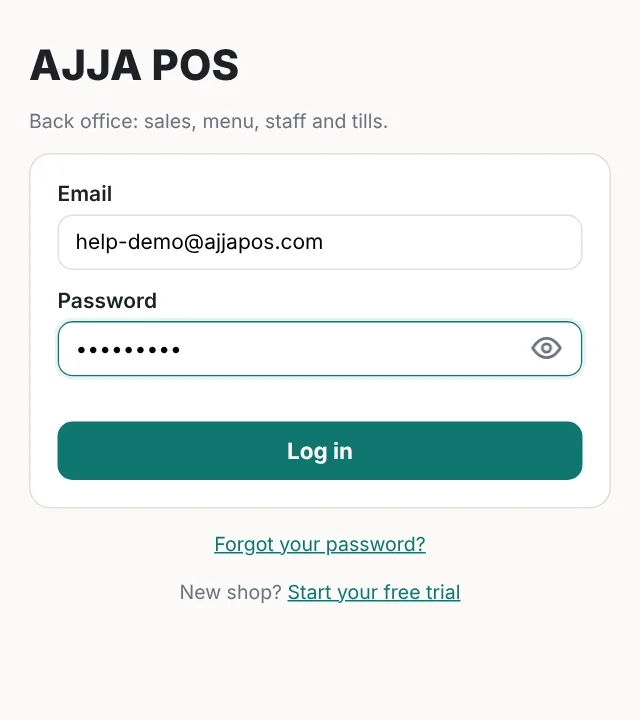
Forgot your password? Press Forgot your password? on the login page and we will email you a link to choose a new one.
2A quick look around
After logging in you see the Dashboard: today's sales, cash and card totals, open tables, sales by hour and your best sellers. It updates by itself every 30 seconds.
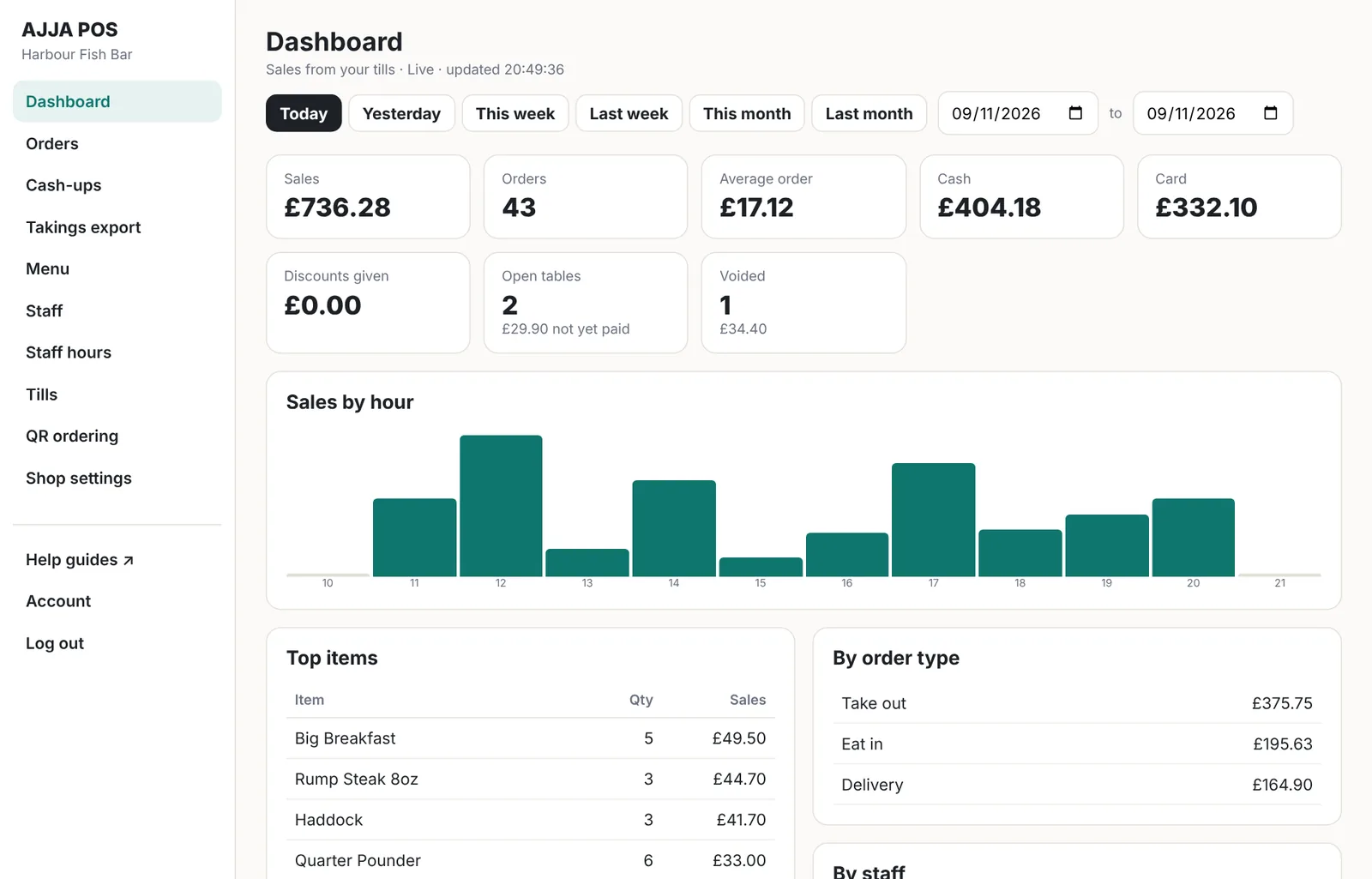
The menu on the left takes you to everything else:
- Orders: every order from your tills. Tap one to see what was in it.
- Cash-ups: the float, expected cash and counted cash for each shift.
- Menu, Staff and Shop settings: changes go to all your tills within a minute.
- Tills: connect tablets and waiter phones.
- QR ordering: let customers order and pay from their table.
- Account: change your email or password, and manage your subscription.
3Enter your shop details
Open Shop settings. What you type here is printed at the top and bottom of every receipt.
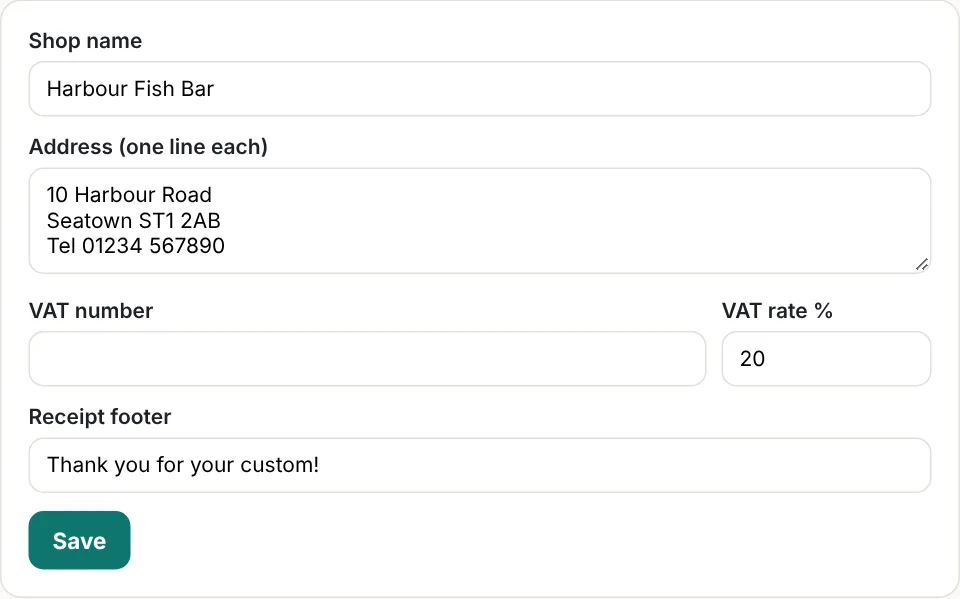
- Shop name: as you want it on receipts.
- Address: one line each. Put your phone number on the last line, for example Tel 01304 123456.
- VAT number: only if you are VAT registered. Leave it empty if not.
- VAT rate %: usually 20.
- Receipt footer: a line at the bottom, for example Thank you for your custom!
- Press Save.
4Install the app on your tablet
AJJA POS runs on Android tablets for the counter and Android phones for waiters.
- On the tablet, open the download link we sent you. If you don't have it, email admin@ajjapos.com.
- If Android asks whether to allow installing apps from this source, choose Allow, then Install.
- Open AJJA POS. The first time, log in with the PIN 1234.
5Connect the till to your shop
Connecting the till sends its sales to your back office and gives it your menu, staff and shop details.
- In the back office, open Tills and press Connect a till.
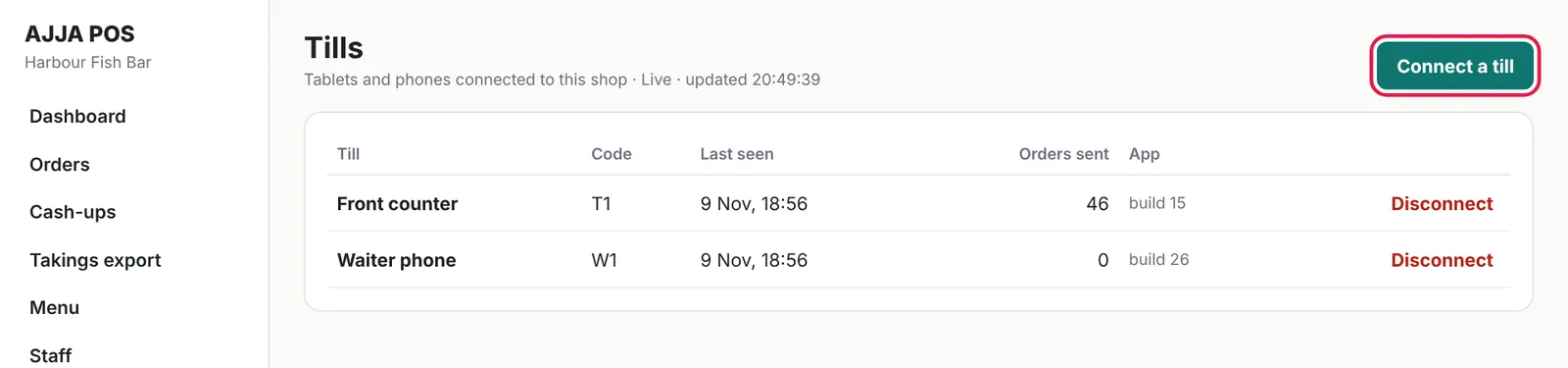
- A 6-digit code appears.
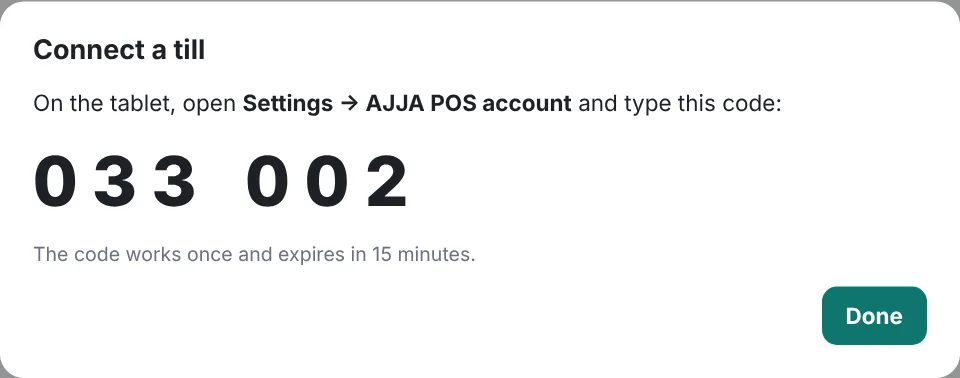
- On the tablet, open Settings (top bar) and the AJJA POS account tab.
- Type a name for this till, for example Front counter, then the 6-digit code, and press Connect.
- The tablet shows Connected to your shop name. Back on the Tills page it shows as online.
6Set up this till
On the tablet, open Settings → Shop. Under This till:
- Till code on receipts: every tablet and phone needs its own code, for example T1 for the counter and W1, W2 for waiter phones.
- Cash on this device is handled by: choose This device on the counter till. On waiter phones that don't take cash, choose The counter till: the phone then takes card only and has no cash-up.
- Customer receipt after payment: Ask each time, Always print or Never.
Press Save. Connect each extra tablet or waiter phone the same way, with a new code each time.