Help ›
Setting up printers
AJJA POS prints customer receipts, kitchen tickets and bar tickets, and opens your cash drawer. Printers are set up on each tablet or phone, because each device prints to the printers it can reach.
1Which printers work
Use an 80 mm receipt printer (also called a thermal or ESC/POS printer), for example an Epson TM, Star or similar model. It can be connected:
- by network cable to your router: best for the kitchen, very reliable;
- by Wi-Fi: on the same Wi-Fi as the tablet;
- by Bluetooth: for a small belt printer on a waiter phone.
2Connect the printer
- Load paper and switch the printer on.
- Network printer: plug its network cable into your router (or a network switch). For a Wi-Fi printer, join it to your shop Wi-Fi using the maker's instructions.
- Make sure the tablet is on the same Wi-Fi network, not a guest network.
- Bluetooth printer: on the tablet or phone, open Android Settings → Bluetooth, find the printer and pair it. The PIN is usually 0000 or 1234.
3Add the printer on the till
- Log in to the till as a manager and tap Settings in the top bar.
- Open the Printers tab.
- Under Add a printer, tap the type:
- Network (Ethernet / Wi-Fi): the till searches your network;
- Bluetooth: shows printers already paired in step 2;
- Star printer: for Star Micronics printers.
- Tap your printer in the list. A test ticket prints straight away.
4Choose what each printer prints
Each printer in the list has switches. Turn on the jobs it should do:
| Switch | Turn on for |
|---|---|
| Receipts | the printer at the counter that prints customer receipts |
| Kitchen | every printer that should get kitchen tickets |
| Bar | the printer for drinks tickets |
| Cash drawer | the printer that has the cash drawer plugged into it |
Common set-ups:
- One printer at the counter: turn on Receipts, Kitchen and Cash drawer (and Bar if you do drinks tickets).
- Counter printer and kitchen printer: counter: Receipts and Cash drawer. Kitchen: Kitchen.
- Plus a bar printer: bar: Bar.
Press Test next to a printer at any time to check it.
5Which products go to which ticket
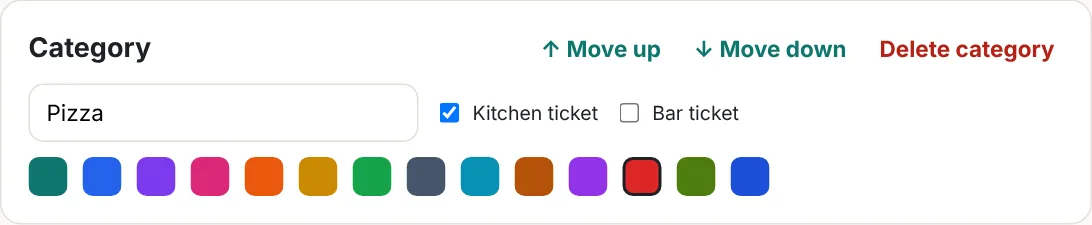
Kitchen and bar tickets follow your menu categories. In the back office, open Menu, select a category and tick Kitchen ticket and/or Bar ticket.
6Waiter phones
Each waiter phone adds its own printers, the same way:
- Connect the phone to the shop Wi-Fi.
- Belt printer for receipts: pair it in the phone's Bluetooth settings, then in AJJA POS Settings → Printers tap Bluetooth and pick it. Turn on Customer receipts.
- Kitchen printer: tap Network and pick the kitchen printer. Turn on Kitchen tickets.
Now when the waiter sends an order, the ticket prints in the kitchen, and the receipt prints on the belt.
7If something does not print
- Check the printer: power, paper, lid closed, cable plugged in.
- Tickets that could not print wait on the till. When the printer is back, tap Retry waiting tickets in Settings → Printers. To throw them away, tap Cancel waiting tickets.
- A printer moved to a new address (for example after a router change): remove it and add it again.
- Still stuck? The Printer test & log tab shows what the till tried. Send a photo of it to admin@ajjapos.com and we will help.