Help ›
Staff hours and your accounts
Staff clock in and out on the till. You see everyone’s hours in the back office, fix mistakes, and download timesheets for payroll. You can also download your daily takings for Xero, QuickFile or your accountant.
Clocking in and out
1Clock in and out on the till
- On the PIN screen of any till or waiter phone, type your PIN.
- Tap Clock in / out (under the number keys) instead of OK.
- The till shows, for example, Jade clocked in at 11:02. At the end of the shift do the same: Jade clocked out at 17:31 · worked 6 h 29 m.
Underneath, the PIN screen shows who is clocked in now. To clock out during service, lock the till first so the PIN screen shows.
2Add pay rates (optional)
In the back office open Staff and type each person's pay per hour in Pay £/hour, then press Save staff.
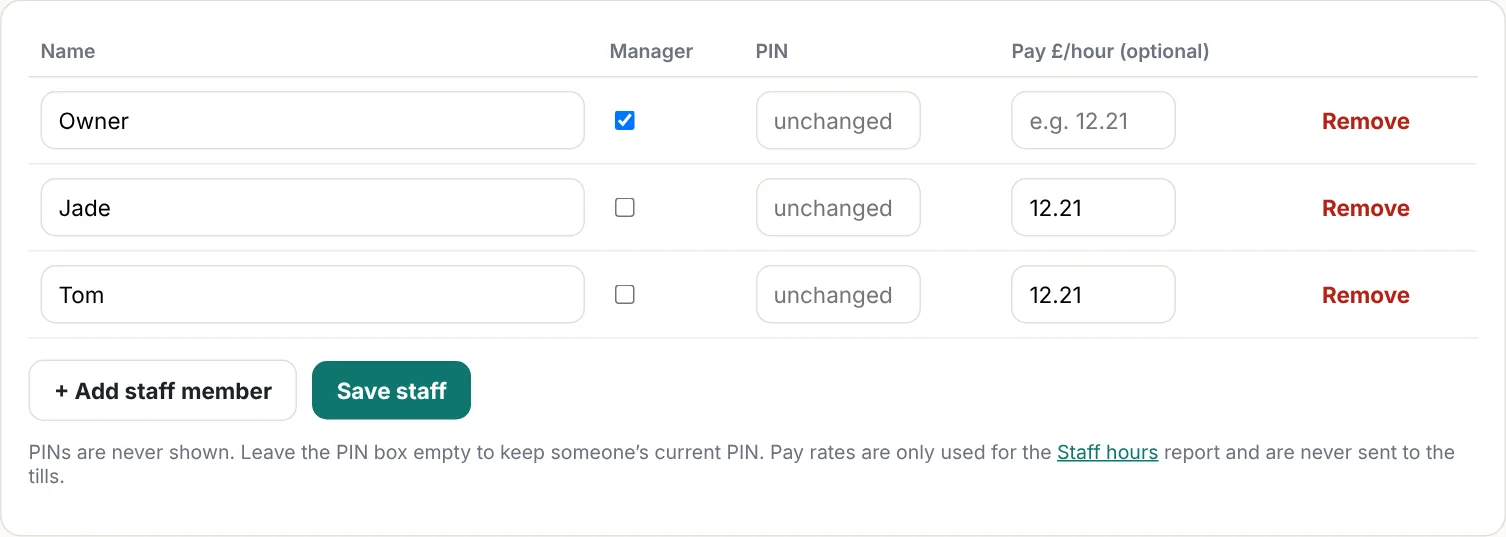
Pay rates are only used in the back office for estimated pay. They are never sent to the tills, so staff cannot see each other's pay.
3See and print the hours
Open Staff hours and choose a period, for example Last week. You see each person's shifts, hours and estimated pay.
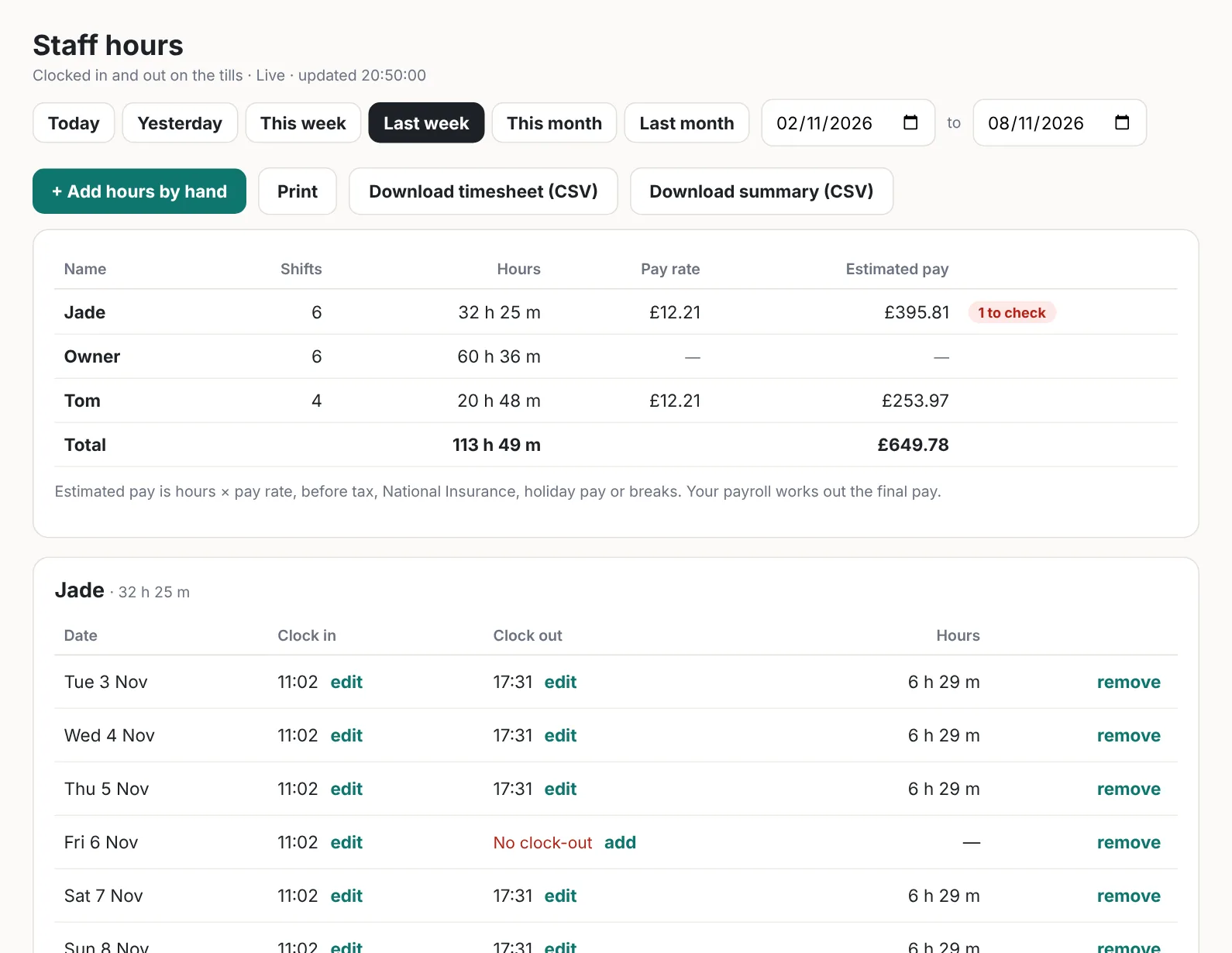
Press Print for a paper copy, ready to sign or file.
4Fix mistakes
Shifts with a problem are marked in red, and the summary shows to check next to the person.
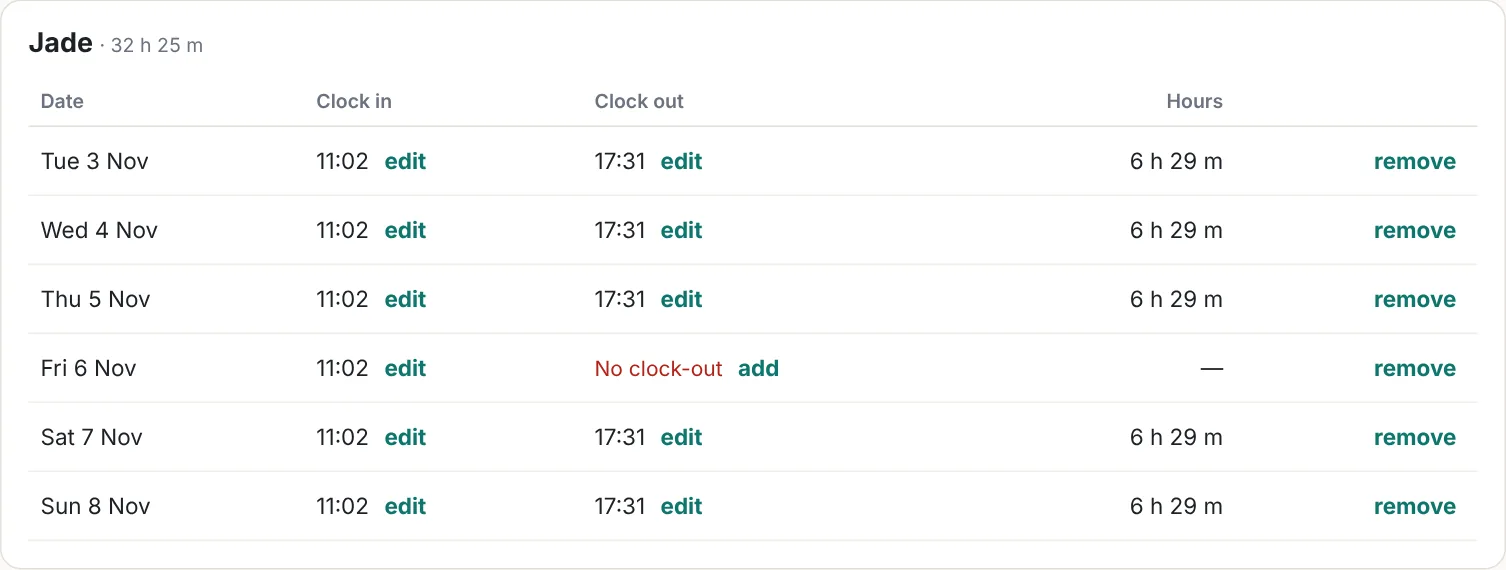
- No clock-out: press add and enter the time they left.
- A wrong time: press edit next to it.
- A shift that should not be there: press remove.
- Someone forgot to clock in and out completely: press + Add hours by hand.
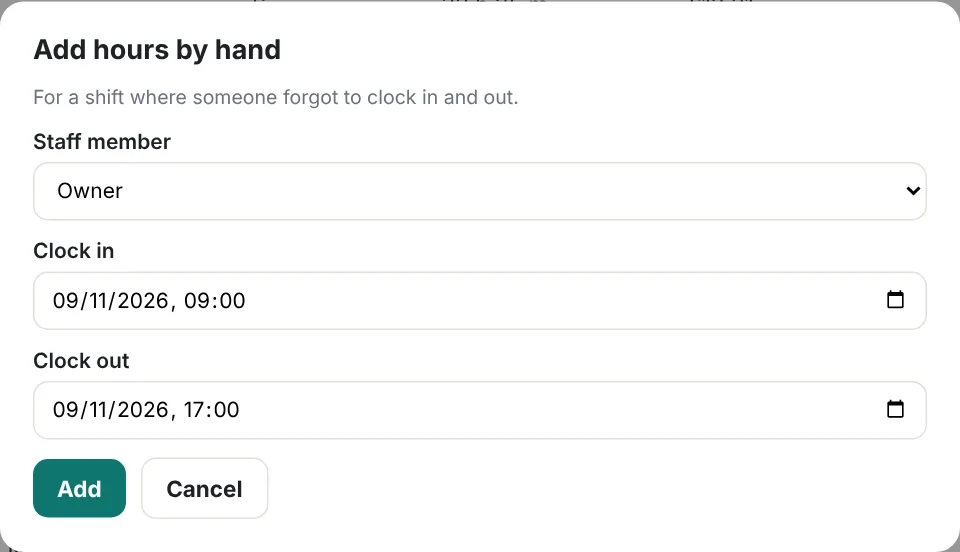
Changes reach the tills within a minute.
5Timesheets for payroll
Press Download timesheet (CSV) for every shift (name, date, clock in, clock out, hours, pay) or Download summary (CSV) for one line per person with total hours and pay. Both open in Excel or Google Sheets.
Give the file to whoever runs your payroll, or type the hours into your payroll software. Xero Payroll and QuickFile can't import hours from a file, so the hours are entered in the pay run there.
Takings for your accounts
6Download your daily takings
Open Takings export and choose a period, for example Last month. You see each day's takings, VAT, cash and card.
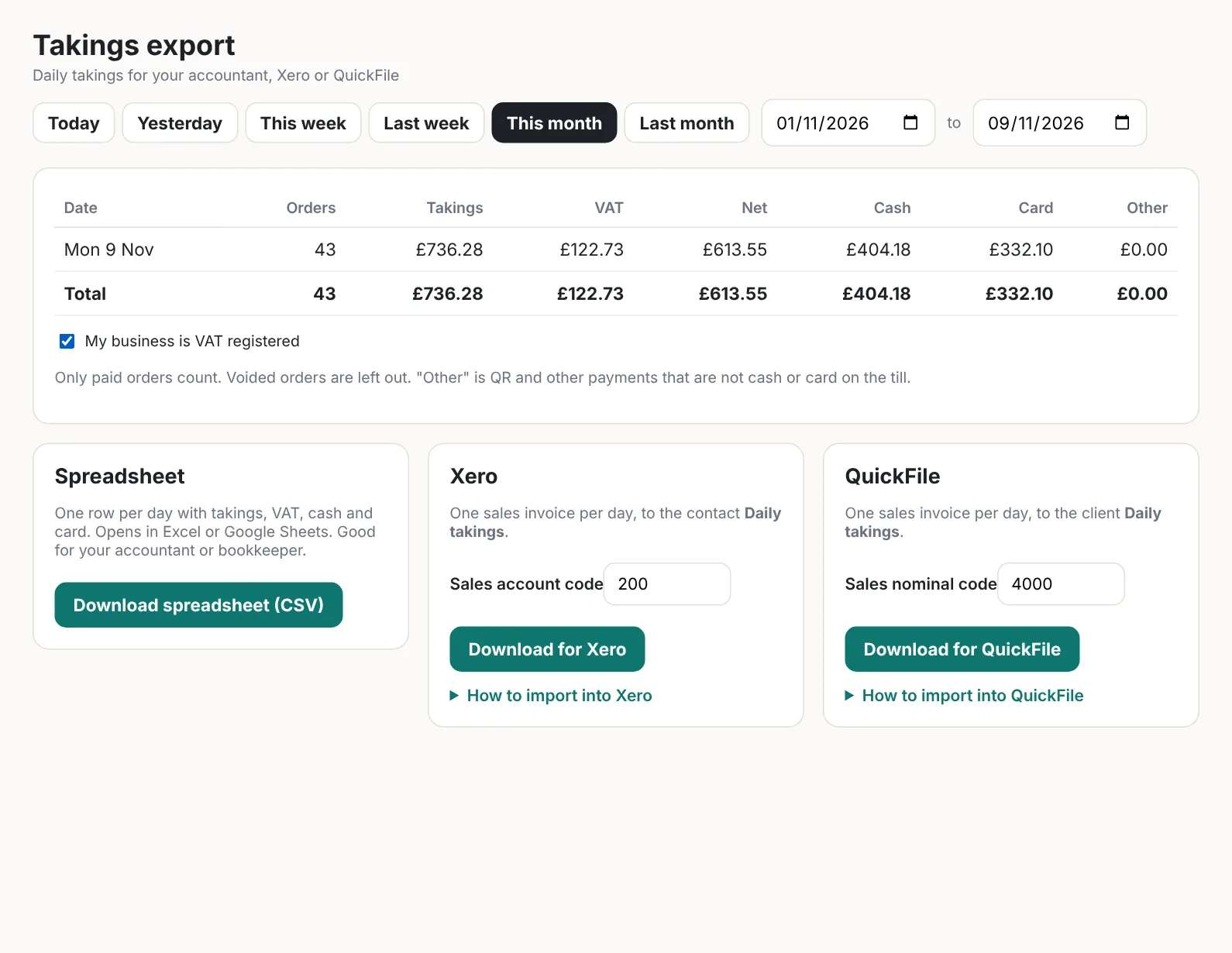
Tick My business is VAT registered if you are. It is ticked for you when your VAT number is filled in under Shop settings.
- Spreadsheet: one row per day, for your accountant or bookkeeper.
- Xero and QuickFile: one sales invoice per day, to a customer called Daily takings. Only paid orders count.
7Import into Xero
- Check the Sales account code (200 is Xero's standard Sales account) and press Download for Xero.
- In Xero, go to Sales (or Business → Invoices) and choose Import.
- Choose the file. When Xero asks, set Amounts are to Tax inclusive.
- The invoices arrive as drafts. Check them and press Approve.
- When you reconcile your bank, match your card payouts and cash deposits to these invoices.
8Import into QuickFile
- Check the Sales nominal code (4000 is QuickFile's standard sales code) and press Download for QuickFile.
- In QuickFile, open Account Settings → Data Import Wizard and choose Sales invoices.
- Upload the file. The column names match QuickFile's, so they are matched automatically. QuickFile takes up to 250 days at a time.
- Tag your card payouts and cash deposits in the bank to these invoices.