Help ›
Staff, QR ordering and cash-ups
Give each member of staff their own PIN, let customers order from their table with a QR code, and check your cash at the end of each shift.
Staff and PINs
1Add your staff
In the back office open Staff.
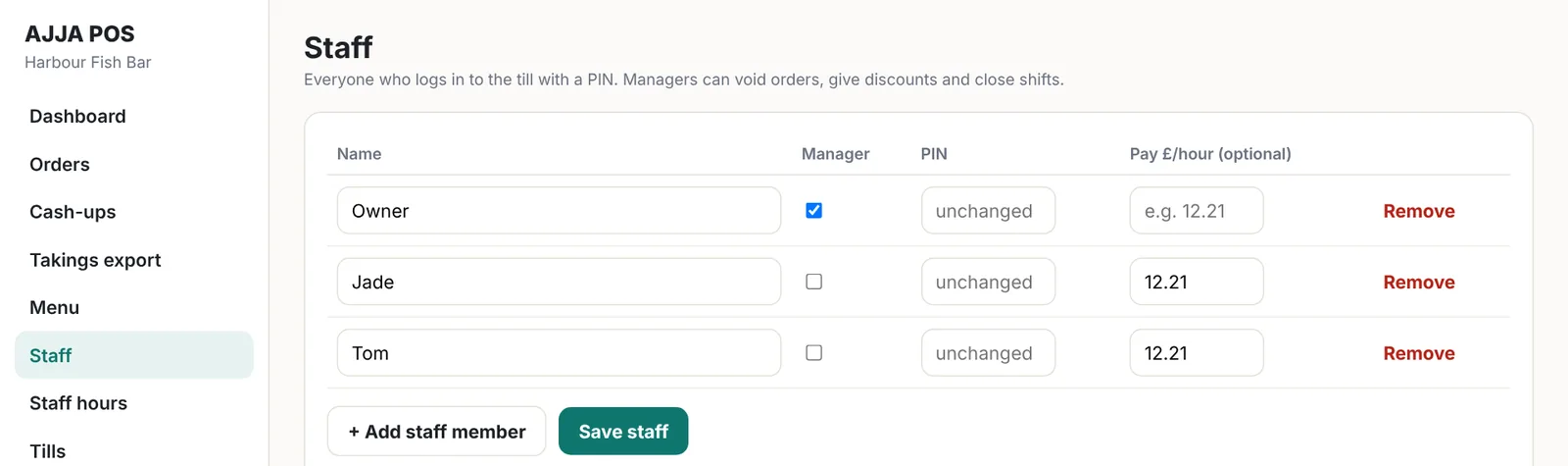
- Press + Add staff member.
- Type their name and a PIN of 4 to 6 digits. Each person needs a different PIN.
- Tick Manager for people who may open Settings, void orders, give discounts, close shifts and print the end of day report.
- Press Save staff. The tills get the change within a minute.
A saved PIN shows as unchanged; it is never shown again. To change it, type a new one and save. To remove someone, press Remove and save.
QR table ordering
2Switch on QR ordering
Customers scan a code on their table, choose from your menu and pay on their phone. The order arrives on your till with a beep and prints in the kitchen.
In the back office open QR ordering.
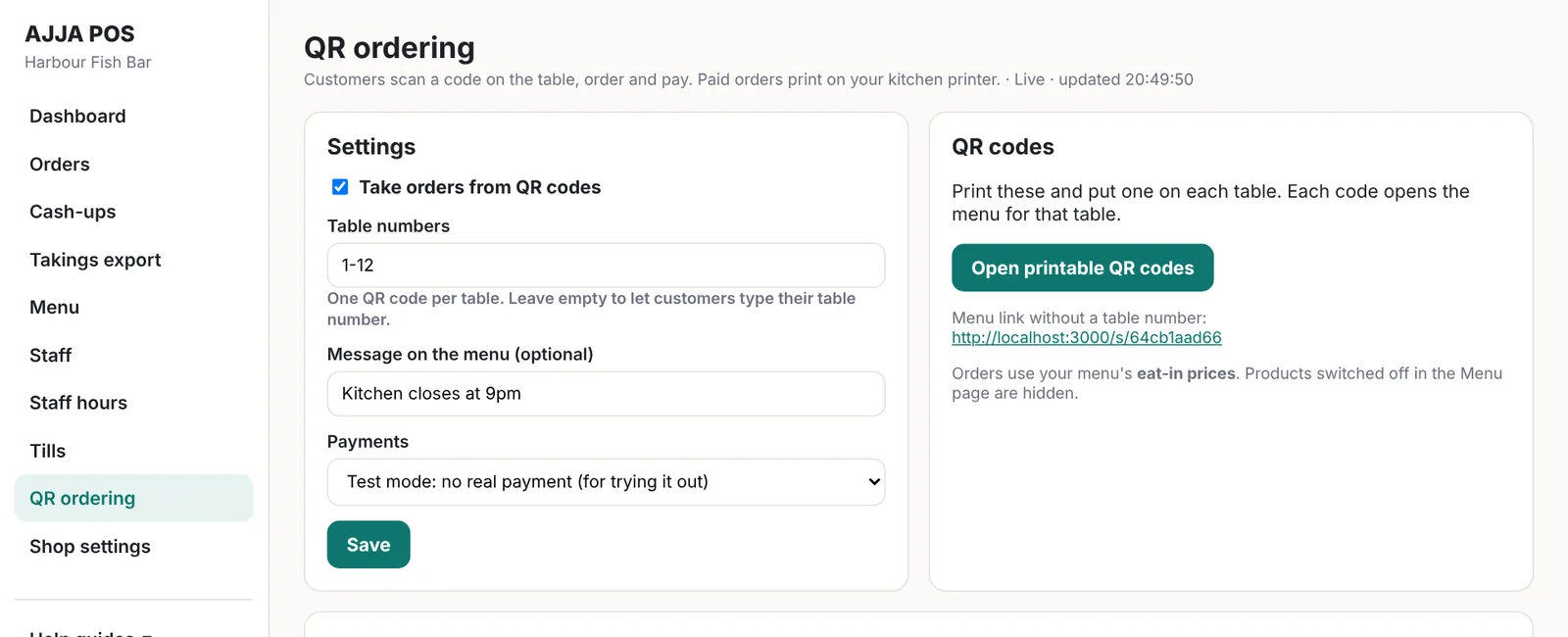
- Tick Take orders from QR codes.
- Table numbers: for example 1-12, 20, Bar. You get one QR code for each.
- Message on the menu (optional): for example Kitchen closes at 9pm.
- Payments: start with Test mode to try it without real payments.
- Press Save.
3Take real payments with SumUp
Customers pay by card, Apple Pay or Google Pay through your own SumUp account. The money goes straight to you; AJJA POS never holds it.
- In SumUp, open Settings → For developers → API keys and create a key.
- In QR ordering, set Payments to SumUp.
- Enter your SumUp merchant code and paste the API key, then press Save.
4Print the QR codes
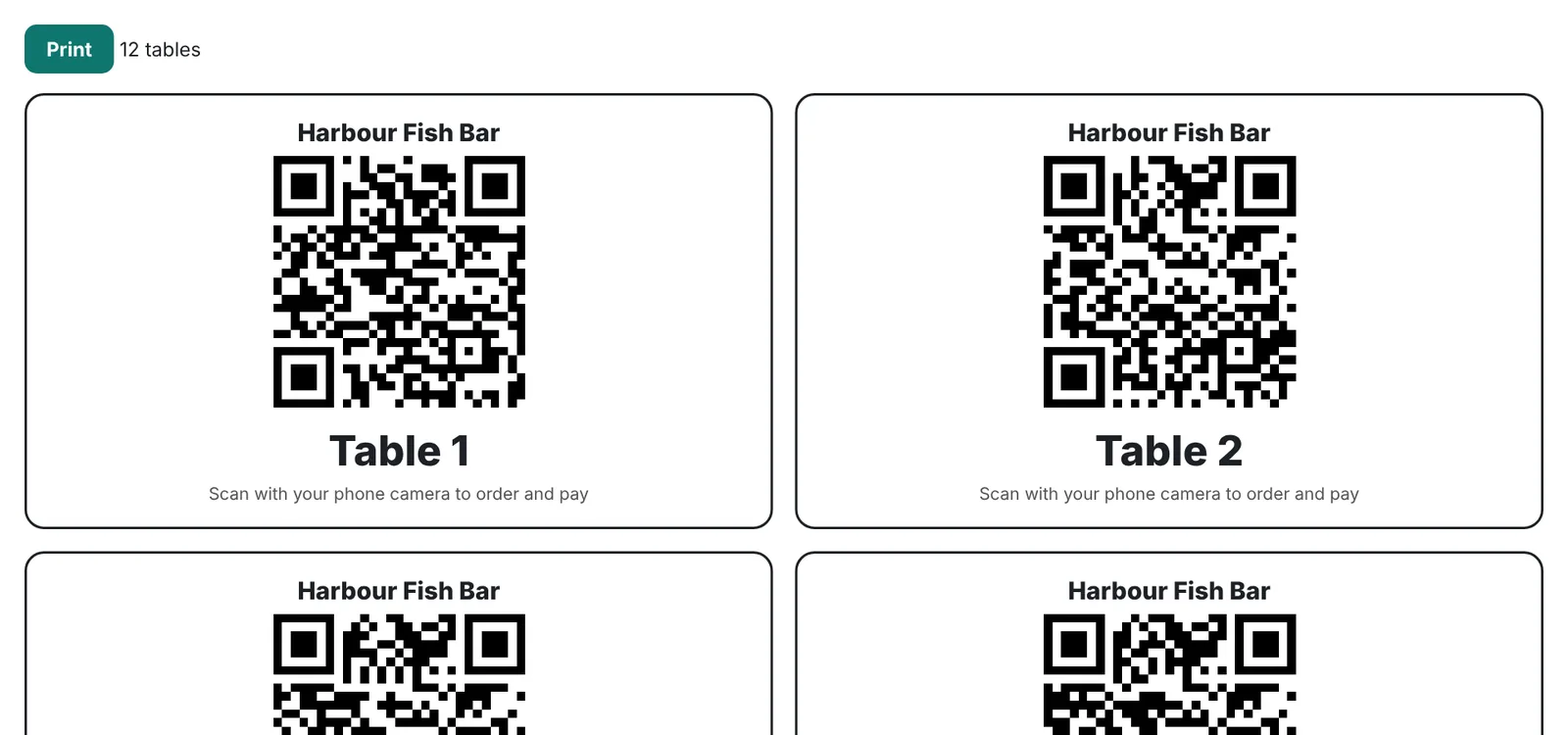
Press Open printable QR codes, then Print. Put each code on its table.
Paid orders appear on your counter till and print on your kitchen printer. A till must be switched on and connected to receive them.
Shifts and cash-ups
5Open a shift with a float
On the counter till, the first person to log in is asked how much cash is in the drawer to start with (the float). Type it and tap Open shift.
You can also open a shift later from the Orders screen: the panel at the top shows today's sales, the shift and the buttons Open shift and Open drawer.
6Close the shift and cash up
- At the end of the day a manager opens Orders on the till and taps Close shift & cash up.
- Count all the cash in the drawer, including the float, and type the total.
- Tap Close shift. The cash-up report prints.
Managers can also tap Print end of day report for the day's totals.
7Check cash-ups in the back office
Open Cash-ups to see every shift: the float, the cash expected from sales, what was counted, and the difference. Red means cash is short, orange means there is more than expected.
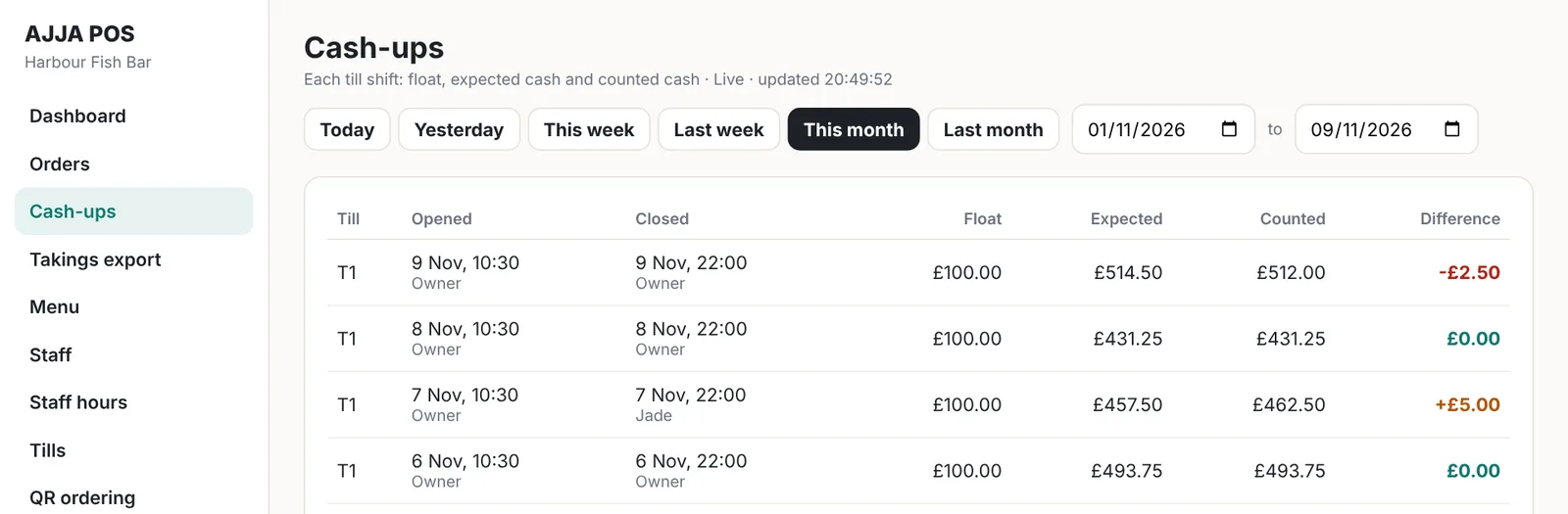
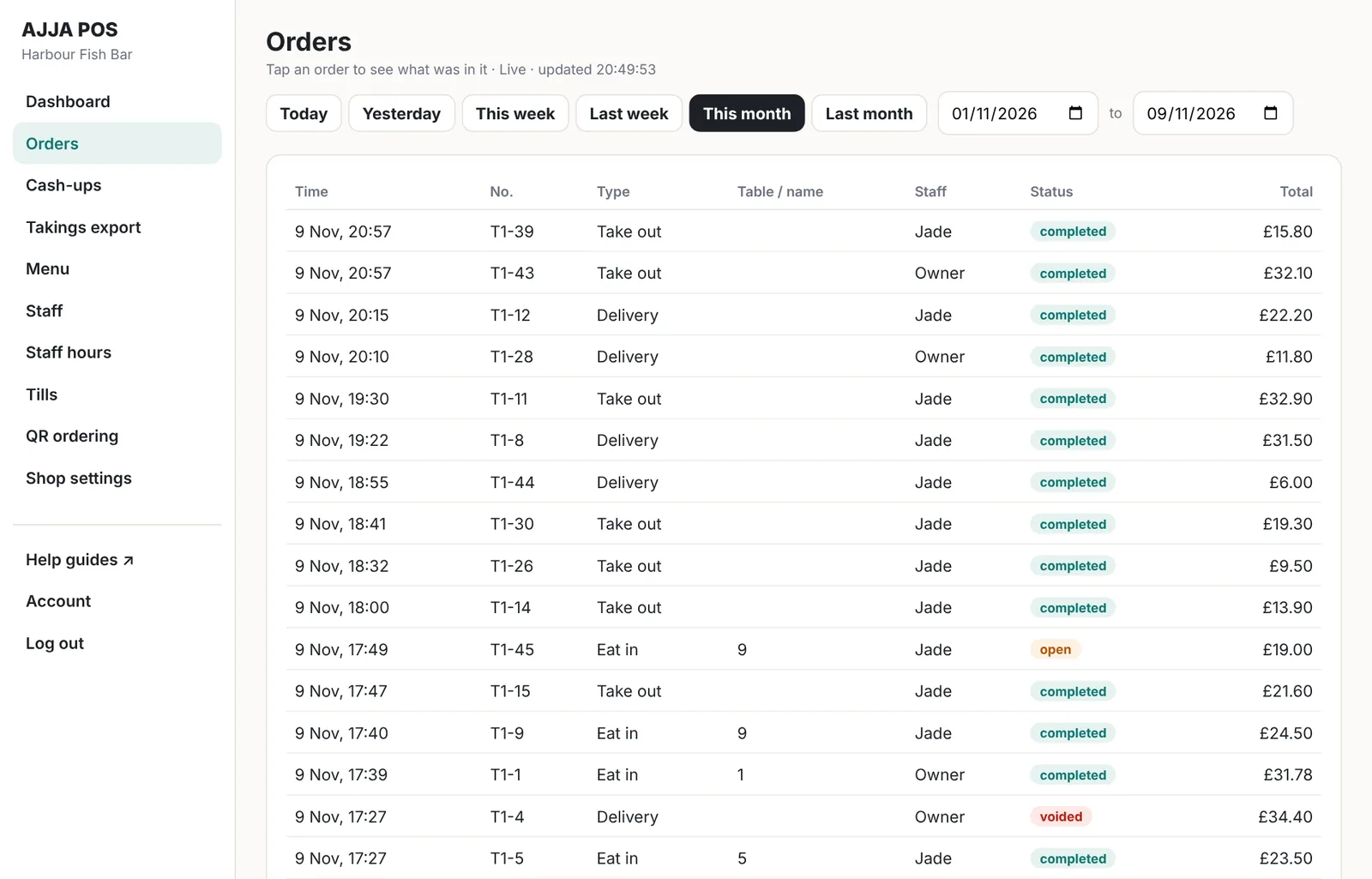
Open Orders to look up any sale: tap an order to see its items, payments and who served.