Help ›
Delivery drivers
AJJA POS help · ajjapos.com/help/drivers
Your own drivers use the AJJA POS app on an Android phone. New delivery orders pop up on their phone, they open the directions with one tap, and they take a photo at the door when they deliver. You see every driver on a map, and customers who ordered online can follow their driver.
1How it works
- A delivery order comes in: paid online, or taken on the till by phone with the customer's address.
- Every driver on shift gets an alert with a sound. The first to tap Accept gets it; you can also choose the driver yourself in the back office.
- The driver taps Directions (Google Maps finds the quickest way) and Picked up: on my way when leaving the shop. Online customers now see the driver on a map, with an arrival time.
- At the door the driver collects the money if it wasn't paid online, then taps Delivered: take photo. The photo is kept for 30 days as proof of delivery.
2Add your drivers
In the back office open Deliveries and press Add a driver. Type their name and phone number. A 6-digit code appears.
On the driver's Android phone:
- Install the AJJA POS app.
- On the PIN screen, tap I'm a delivery driver and type the code.
- Tap Start shift and allow location and notifications when the phone asks.
3On the driver's phone
- Start shift / On shift (top right): only drivers on shift get new deliveries and share their position. Tap it again at the end of the shift.
- New: deliveries nobody has taken yet. Tap Accept.
- Mine: the driver's deliveries, with Directions, Call (the customer), Picked up: on my way, Delivered: take photo and Couldn't deliver (with a reason). With more than one, Route for all my deliveries plans the nearest stop first and opens the whole route in Google Maps.
- Collect £…: orders not paid online. At the door the driver chooses Cash received, or Card: open SumUp to take the card in your SumUp app on that phone, then confirms the payment went through.
- The bottom line shows how many deliveries the driver has done today and the cash and card collected.
4In the back office
The Deliveries page updates every 10 seconds:
- The map shows your shop, the deliveries waiting and on the way, and each driver on shift.
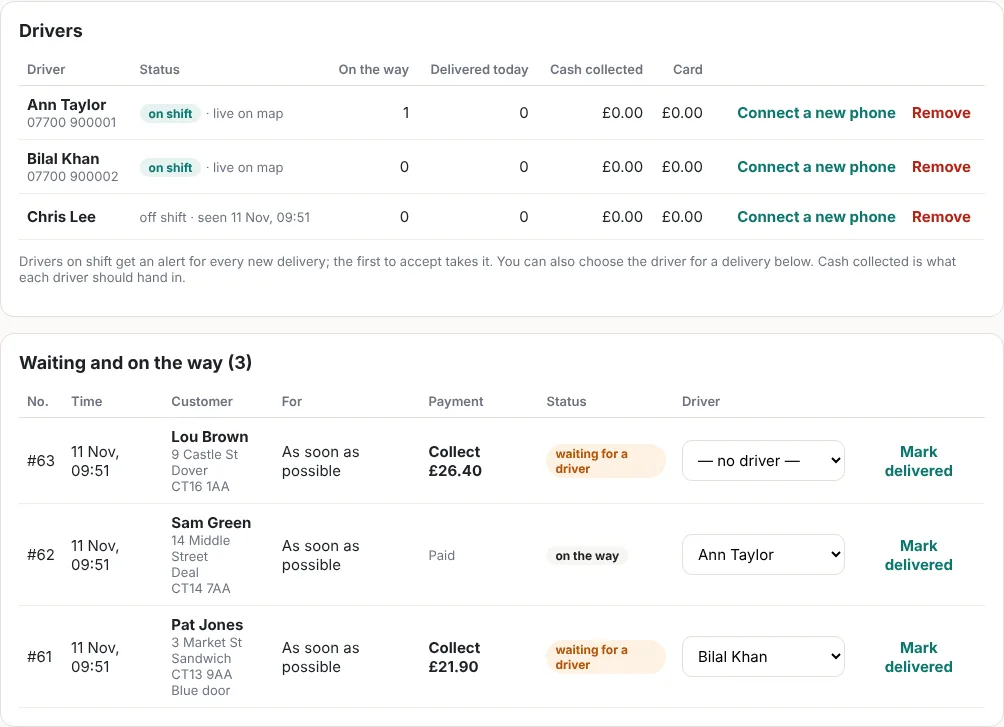
- Drivers: who is on shift, how many deliveries they have on the way and done, and the cash collected each driver should hand in.
- Waiting and on the way: choose or change the driver for any delivery, or Mark delivered yourself.
- Done today: delivered and not-delivered orders, with the reason, and a Photo button for the proof of delivery.
5Delivery orders taken on the till
When you take a delivery order by phone, choose Delivery on the till and tap Add the delivery address. Enter the customer's name, phone, address, postcode and any note for the driver. The address prints on the kitchen ticket and goes to the drivers as soon as you press Send.
When the driver hands in the cash, take the payment on the till as usual (the order stays open until you do).
6Good to know
- Drivers need Google Maps installed for directions.
- Keep drivers' phones charged: sharing the location uses some battery. Turn off battery saver for AJJA POS if the position stops updating.
- The driver app is for Android phones. An iPhone version follows.
7No drivers of your own? AJJA drivers
Shops without their own drivers can use AJJA drivers: checked, approved drivers near you who collect paid delivery orders and take them to your customers. Ask us to switch it on (or tick it when you sign up); we set your price per delivery.
- Top up your driver credit: in the back office open AJJA drivers (under Deliveries) and choose Top up by card. You can also switch on Automatic top-up, so your card is charged when the credit runs low.
- Paid delivery orders are offered to AJJA drivers within 3 miles of your shop (5 miles after 3 minutes). You can also press Ask an AJJA driver next to an order in Deliveries.
- Deliveries shows where the order is: Looking for an AJJA driver, coming to collect, on the way, delivered. Your customer can follow the driver too.
- The price of each delivery is taken from your credit when the driver delivers. The Statement lists every top-up and delivery (Download CSV for your accountant).