Help ›
Stock control
AJJA POS help · ajjapos.com/help/stock
AJJA POS keeps count of your stock for you. You tell it what each dish uses, and every sale takes that off stock. You see what is running low, send orders to your suppliers, check deliveries in, and know your food cost and stock value.
Setting up
1How it works
There are two kinds of things: stock items are what you buy (cod fillets, potatoes, cans of drink), and menu products are what you sell (cod & chips). A recipe links them: it says what one sale uses.
- Stock is taken off when an order is paid. Open tables count once they are paid. A voided order puts its stock back.
- When an item runs out, products that use it show Sold out on the till and disappear from the QR menu.
- Products without a recipe are not tracked, so you can start small.
Everything is in the back office under Stock.
2Add your suppliers
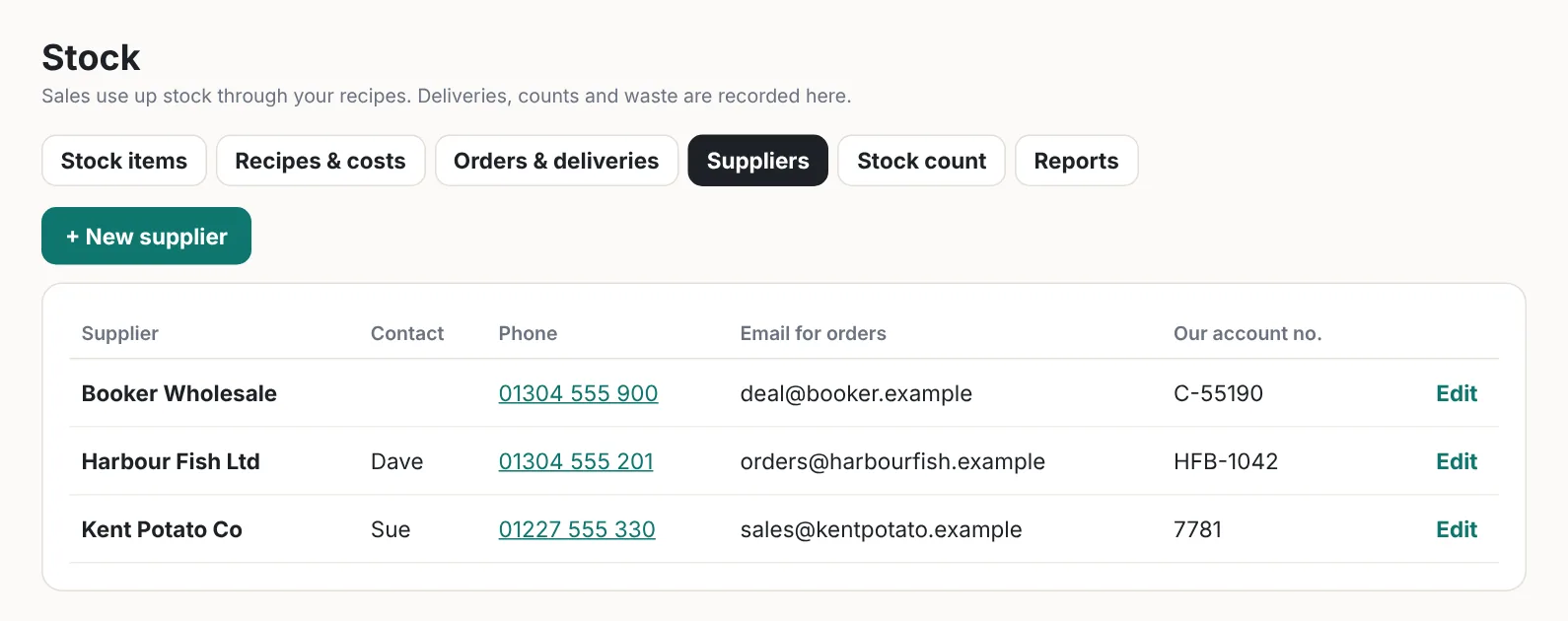
Open the Suppliers tab and press + New supplier. Enter the name, phone, the email for orders and your account number with them.
3Add your stock items
Open the Stock items tab and press + New stock item.
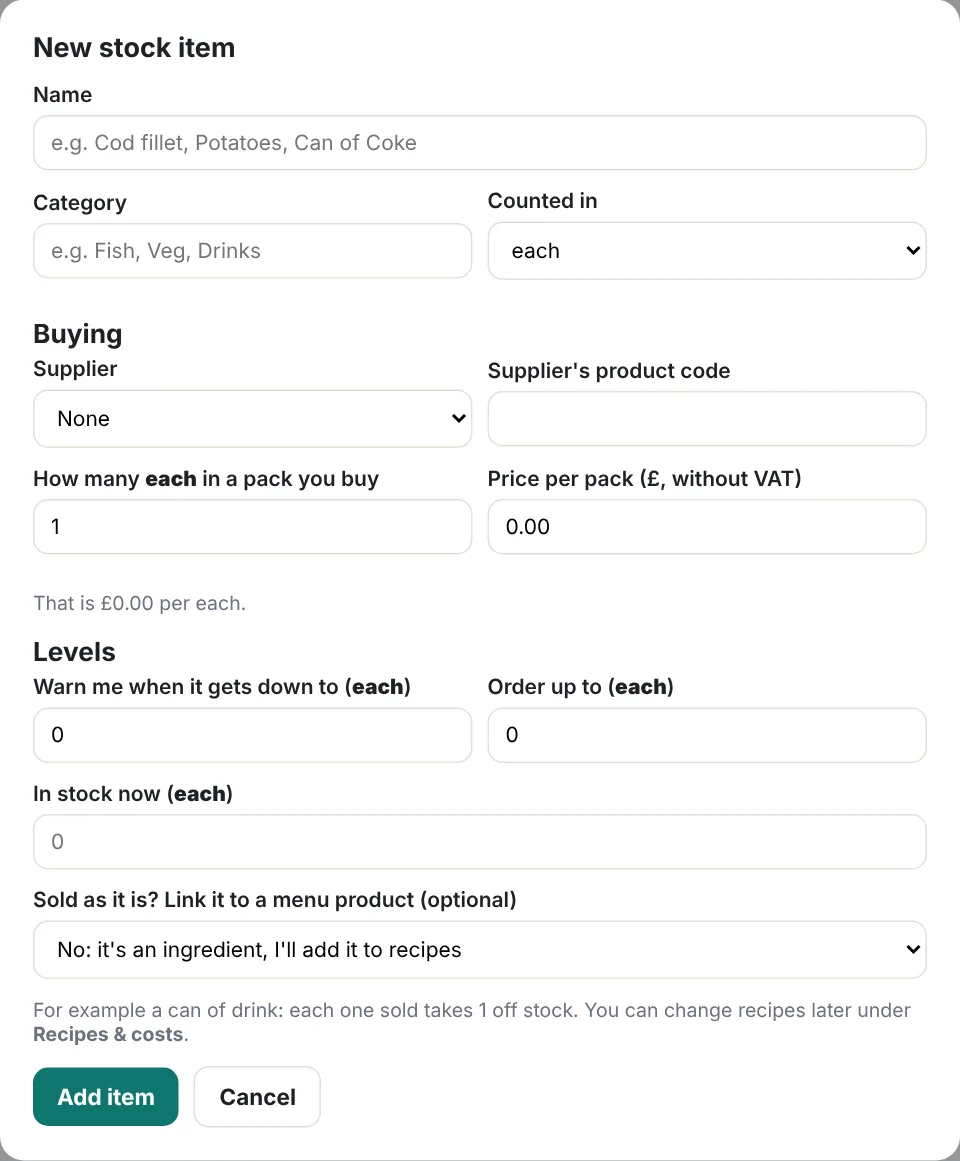
- Name and Category (for example Fish, Veg, Drinks).
- Counted in: the unit you count it in, for example each for fillets, kg for potatoes, can for drinks.
- Supplier and their product code.
- How many in a pack you buy and the price per pack, for example 25 kg for £11.50. AJJA POS works out the cost per kg.
- Warn me when it gets down to: your low-stock level.
- Order up to: how much you like to have after a delivery. Used to fill in orders.
- In stock now: what you have today.
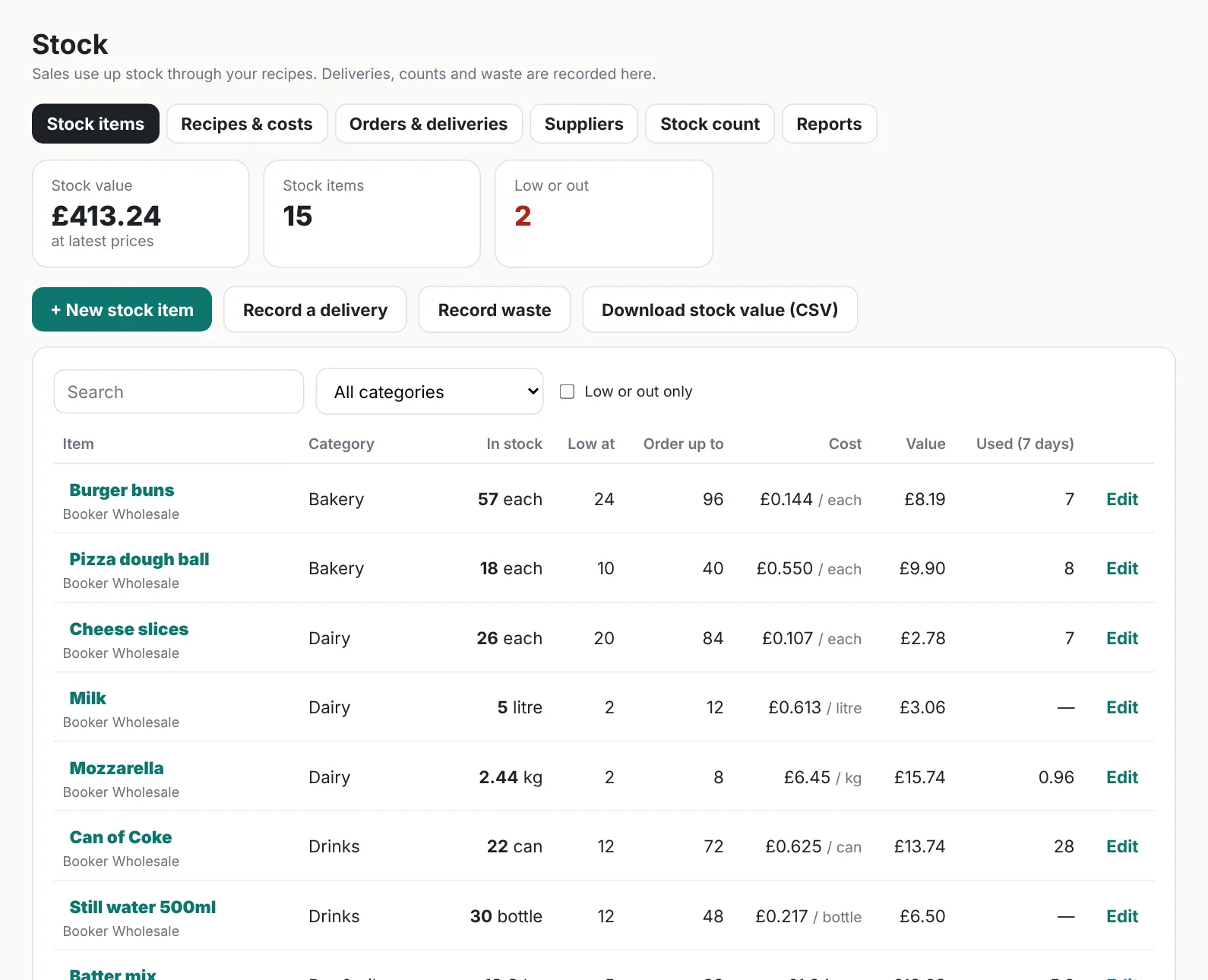
The list shows how much you have, Low or Out, the cost per unit, the value of what is on the shelf and how much was used in the last 7 days.
4Add recipes to your dishes
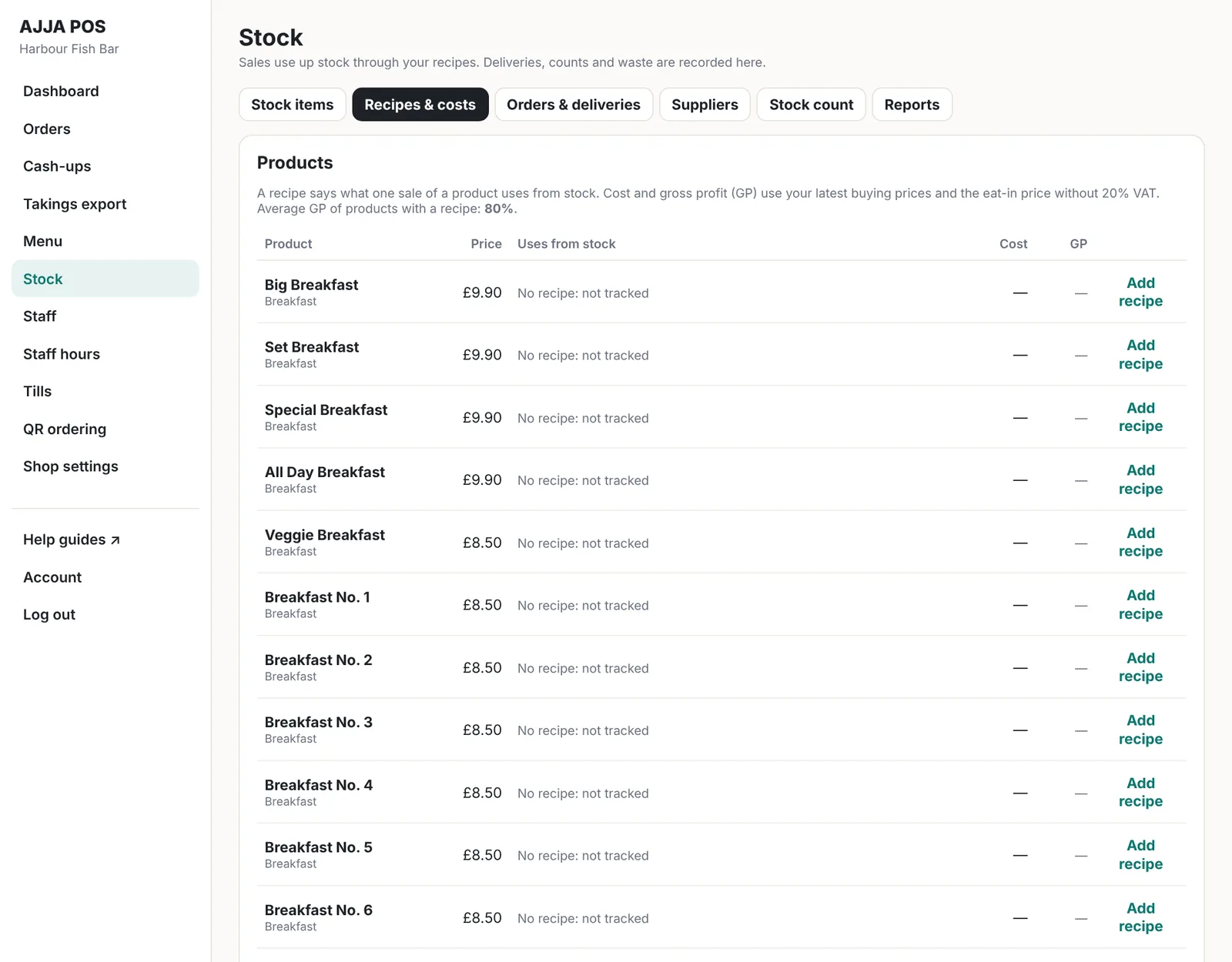
Open Recipes & costs. Every menu product is listed with its price. Press Add recipe next to a dish.
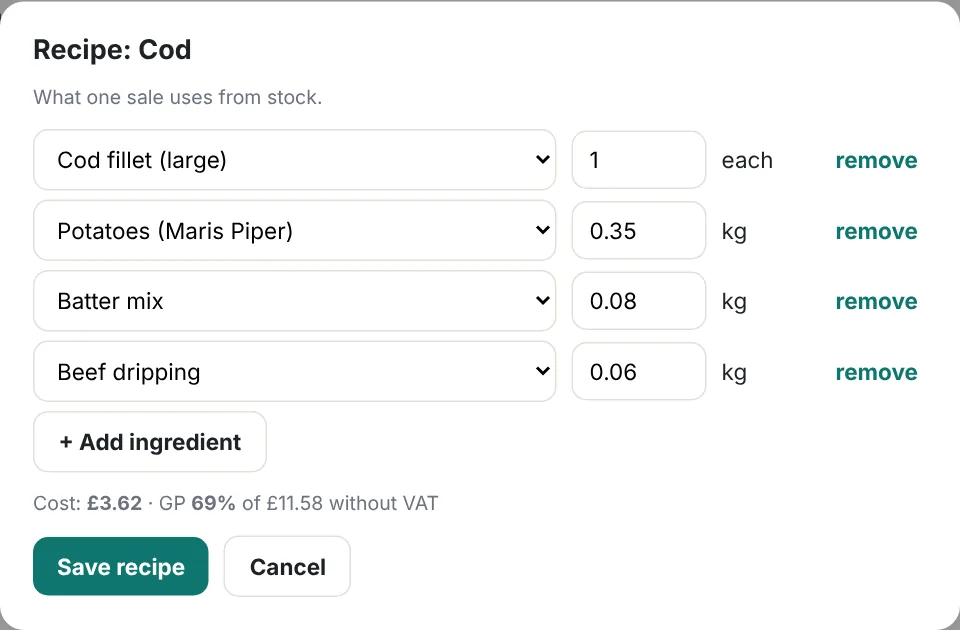
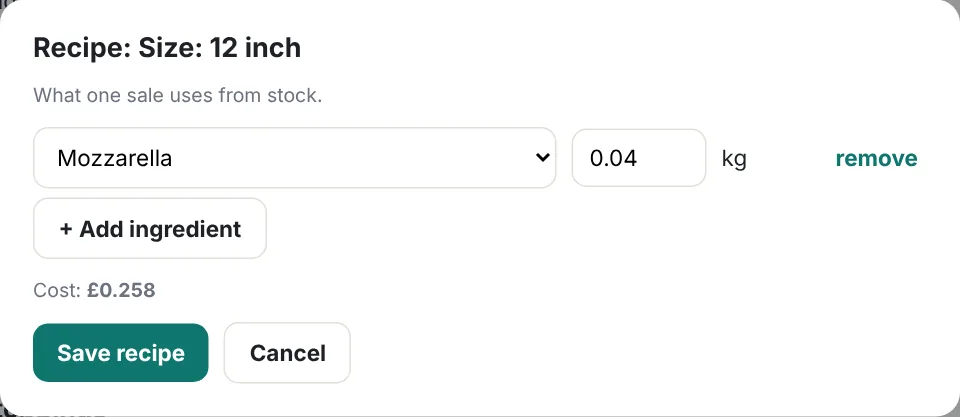
Add each ingredient and how much one sale uses, in the item's own unit (0.35 kg is 350 g). The window shows the cost and the GP (gross profit) straight away.
GP is coloured: green 60% or more, orange 40 to 60%, red under 40%. It uses the eat-in price without VAT and your latest buying prices, so it changes when your supplier's prices change.
Choices and add-ons can use stock too. Further down the page, give Large chips its extra potatoes, or 14 inch its extra cheese.
Day to day
5On the till
Products show 3 left when an ingredient is running low, and Sold out when there is not enough left for one more. Tapping a sold-out product asks whether to Sell anyway, in case the count is wrong.
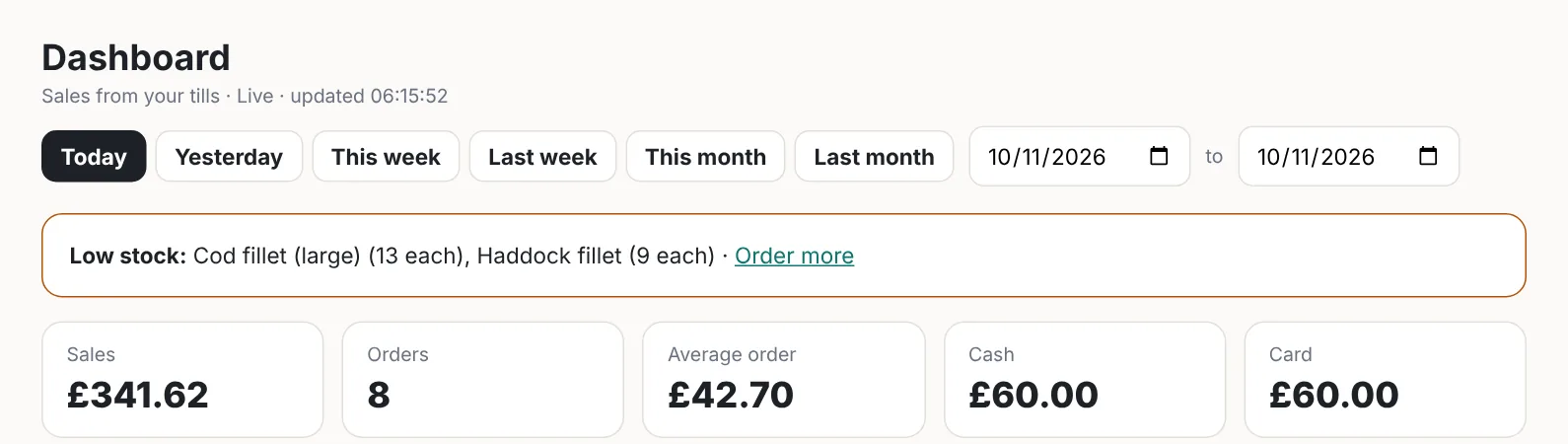
The back office Dashboard shows a Low stock line with a link to order more.
6Order from your suppliers
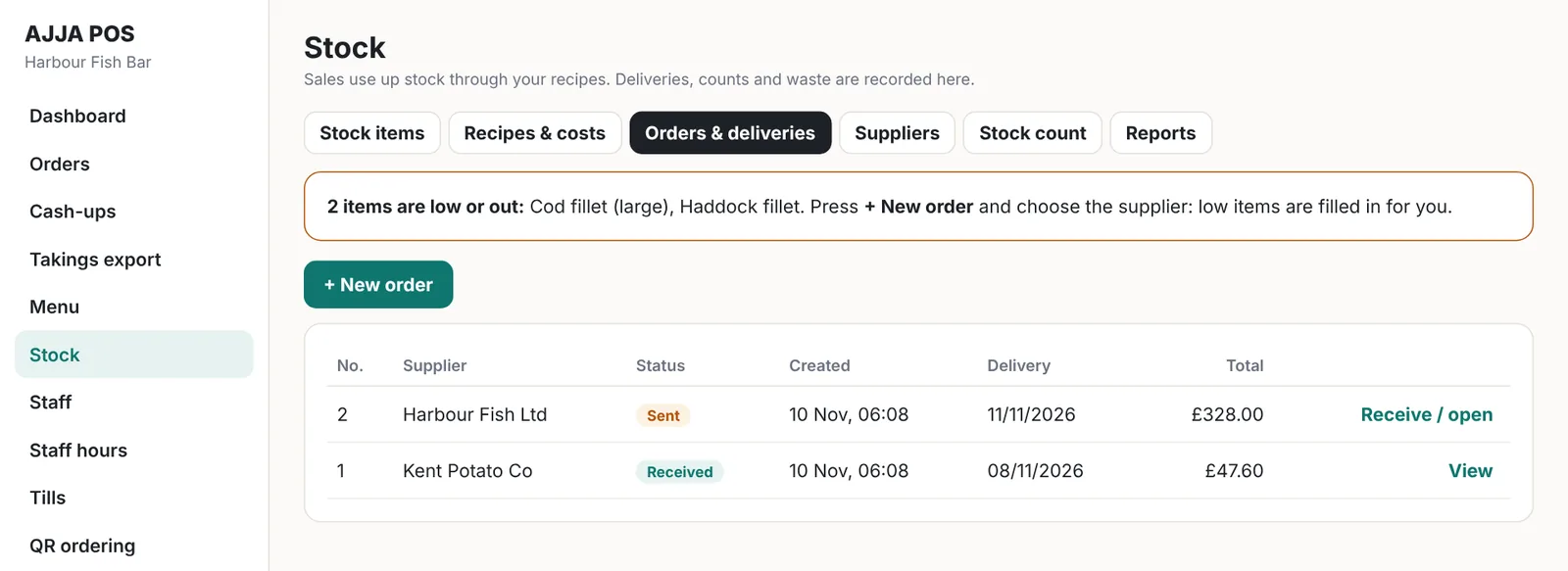
Open Orders & deliveries and press + New order. Choose the supplier. With Fill in items that are low ticked, everything at or below its low level is added, enough to bring it up to its Order up to level.
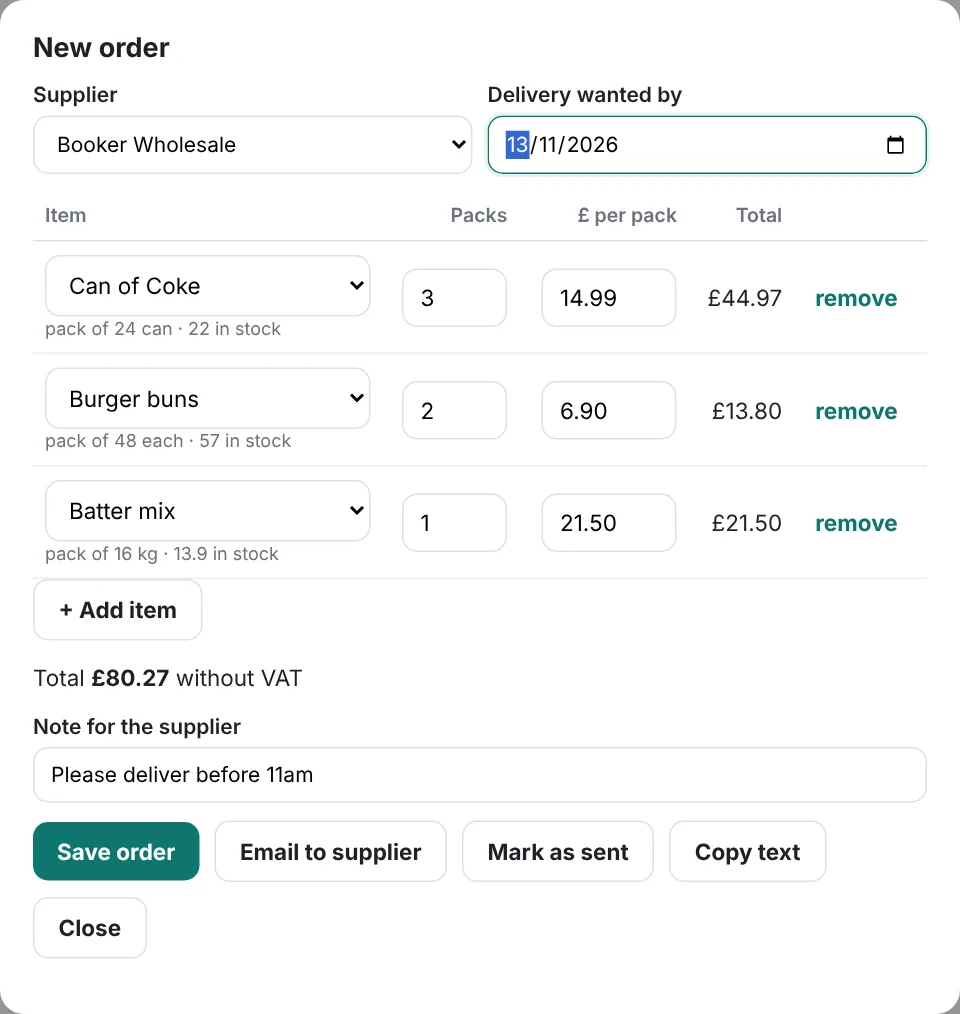
Change the packs, add items with + Add item, set the delivery date and a note. Then:
- Email to supplier: we email the order for you. Their reply comes to your own email address.
- Copy text: paste it into a text or WhatsApp message.
- Mark as sent: if you ordered by phone.
7Check the delivery in
When the delivery comes, open the order (Receive / open). Check each line against the delivery note: change what arrived, and the price per pack if the invoice is different. Put 0 for anything that did not come.
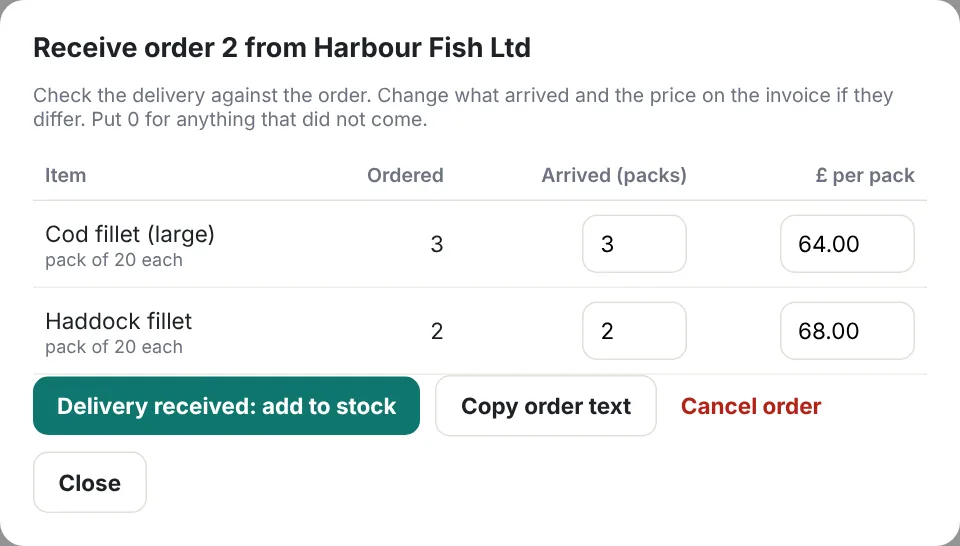
Press Delivery received: add to stock. Stock goes up, and new prices are used for your costs from now on.
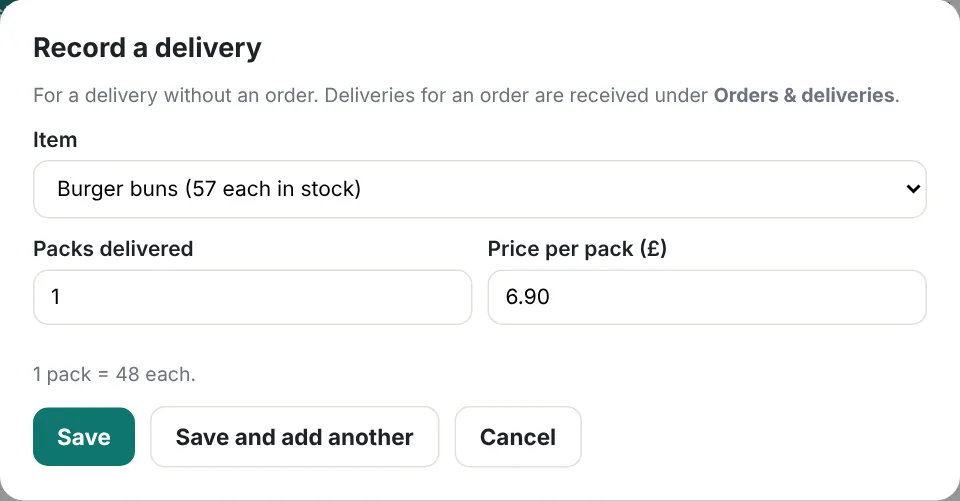
A delivery without an order, for example from the cash and carry? Use Record a delivery on the Stock items tab.
8Record waste
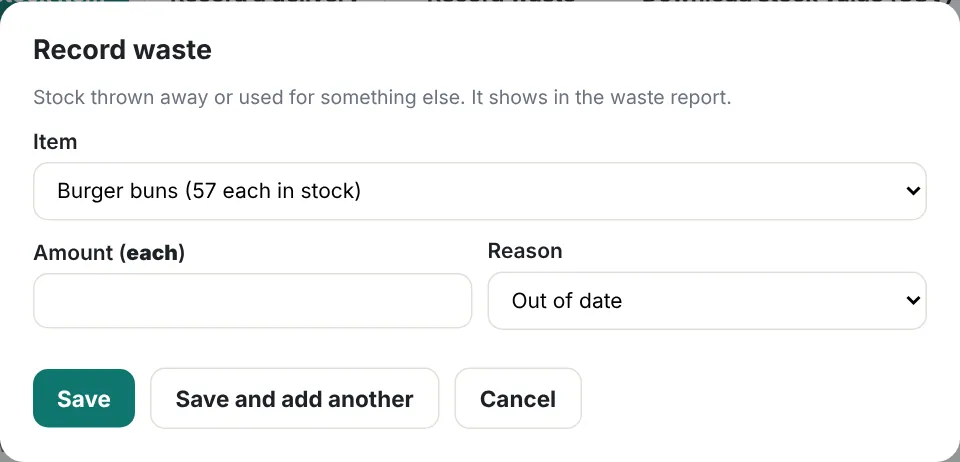
Thrown something away? On Stock items press Record waste, choose the item, the amount and the reason (out of date, damaged, dropped, cooked wrong, staff food).
9Count your stock
Once a week, or at least once a month, count what is really on the shelves. Open Stock count, press Print count sheet if you like to count on paper, then type what you counted.
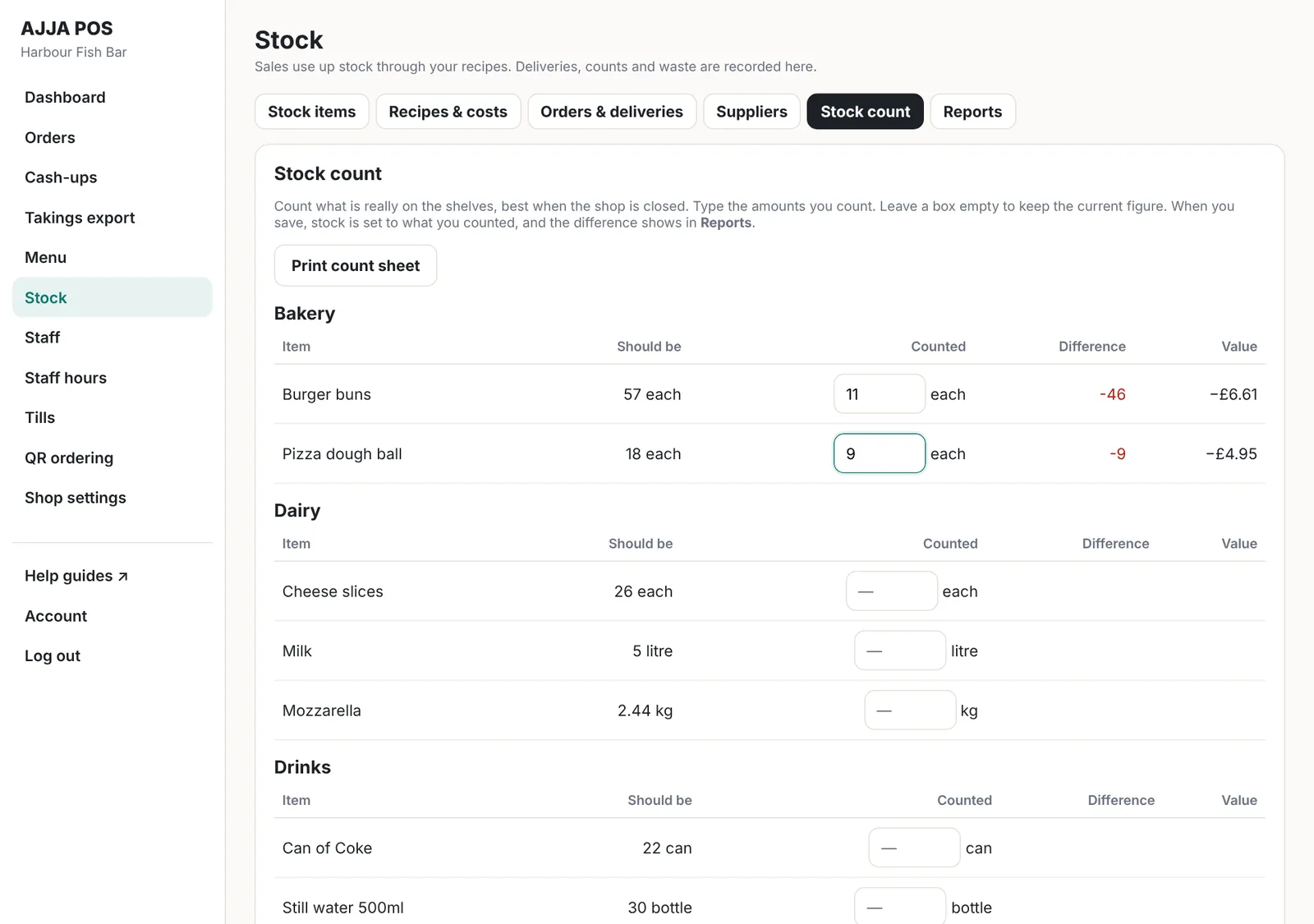
The page shows the difference for each item, in amount and in money. Press Save count: stock is set to what you counted.
10See the history and make changes
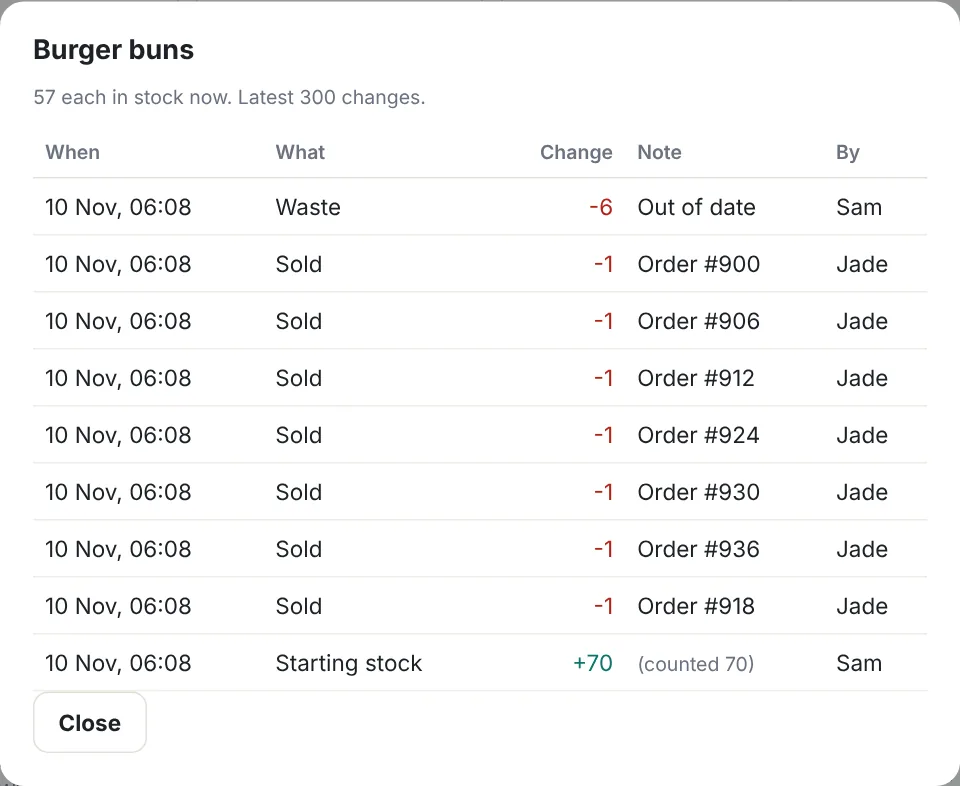
Click an item's name to see every change: sales, voids, deliveries, waste and counts, with who did it. Press Edit to change prices, levels or the supplier. Remove item hides it but keeps its history.
Reports
11Food cost, waste and stock value
Open Reports and choose a period.
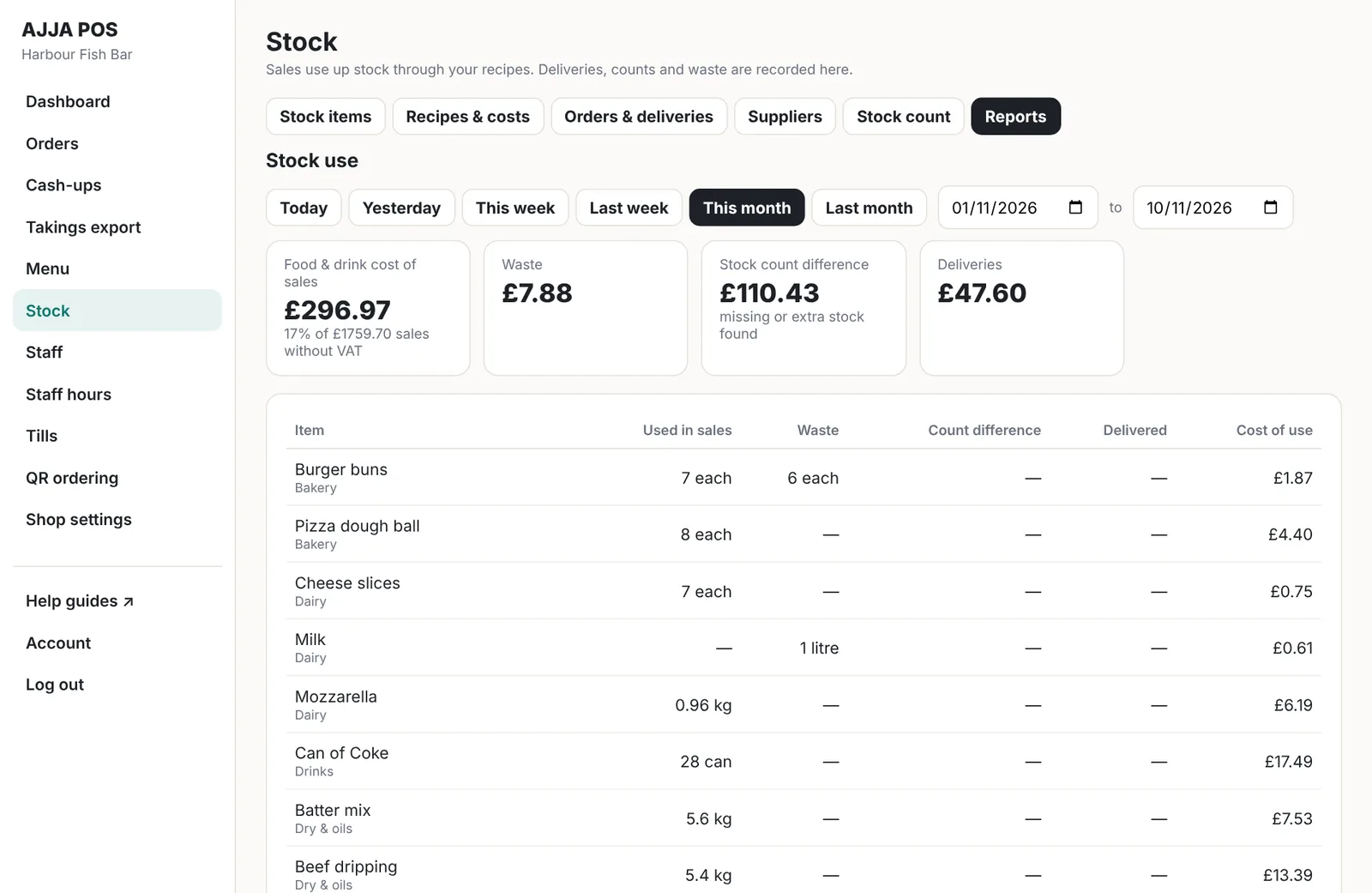
- Cost of sales: what your recipes say was used, at buying prices, and what percentage of your sales (without VAT) that is. Many takeaways aim for about 30%.
- Waste and Stock count difference: money lost to waste and to missing stock.
- Deliveries: what came in.
For your accountant or your year end, press Download stock value (CSV) on the Stock items tab: every item with its amount, cost and value.