Help ›
Online delivery and collection
AJJA POS help · ajjapos.com/help/online-ordering
Customers find your shop on their phone, order delivery or collection, and pay by card, Apple Pay or Google Pay into your own SumUp account. Paid orders print in your kitchen with the customer's name, phone and address. This guide takes about 20 minutes.
You need: the online ordering add-on, your SumUp details (the same as for QR ordering), and a till that is switched on while you take orders.
1How it works for your customers
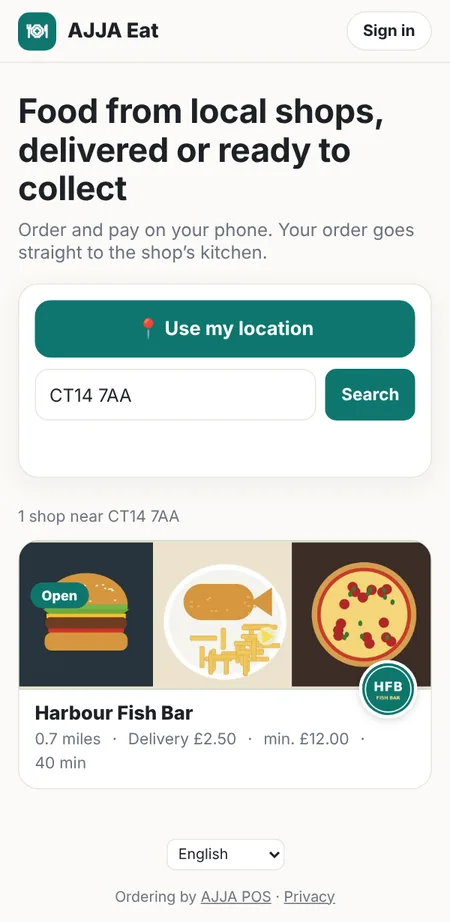
Customers open ajjapos.com/eat (or your own web address, see step 9) on their phone. They can add it to their home screen, and it then opens like an app.
- They tap Use my location or type their postcode, and see the shops that deliver to them or are close enough to collect from.
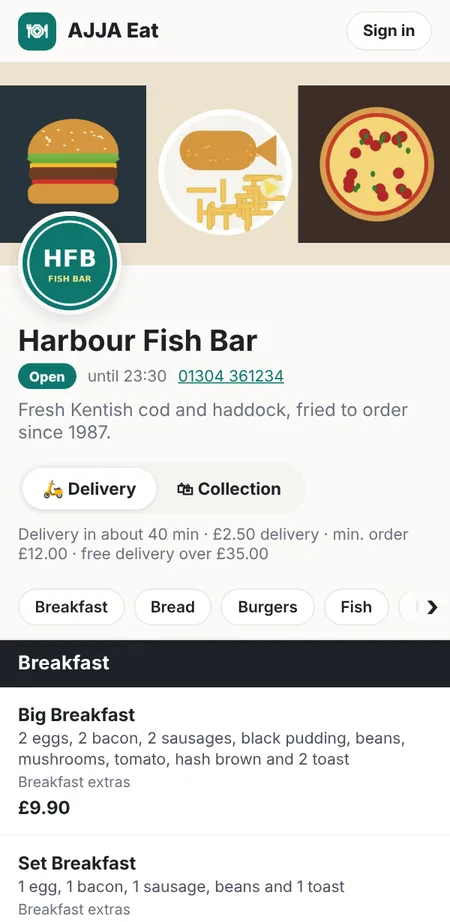
- They open your shop, choose Delivery or Collection, and add food to the basket with its choices and extras.
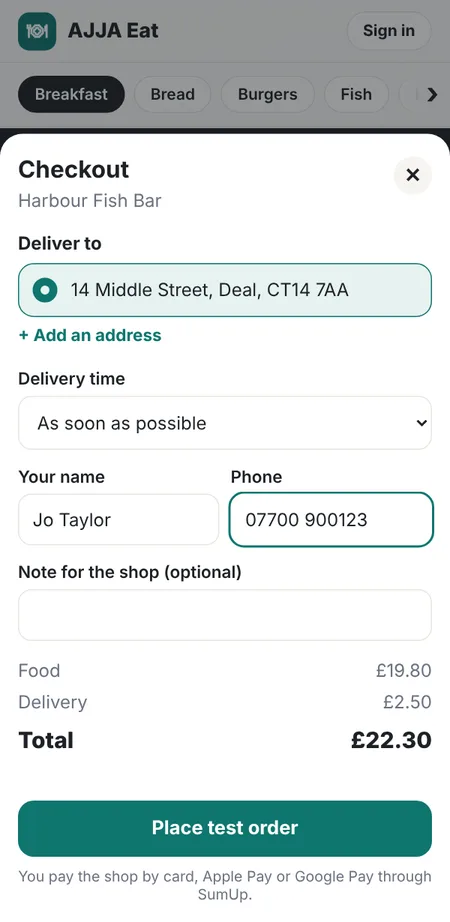
- At checkout they sign in with a 6-digit code we email them (no password), choose their address and a time (as soon as possible, or later today), and pay.
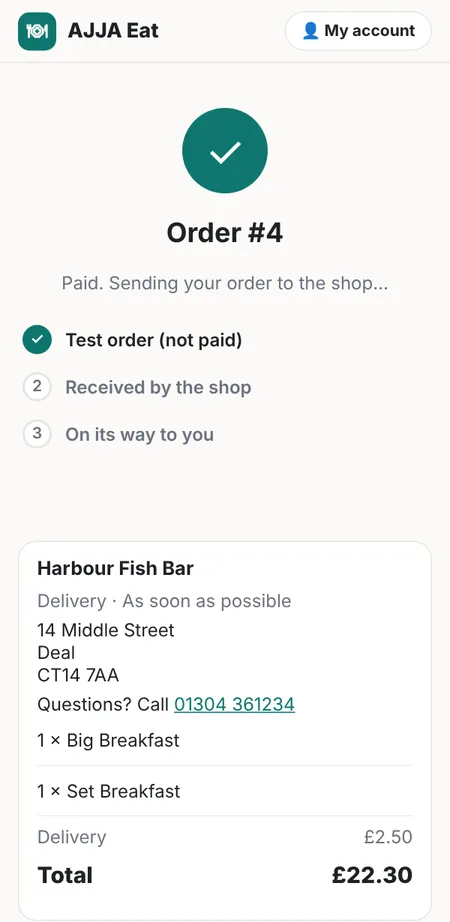
- They see their order go from Paid to Received by the shop when your till has it.
2Turn on the add-on
In the back office open Online orders. Online ordering is an add-on to your subscription: press Add online ordering and confirm. It is added to your monthly bill, and you can remove it at any time on the same page.

3Your shop details
Fill in the Your shop box:
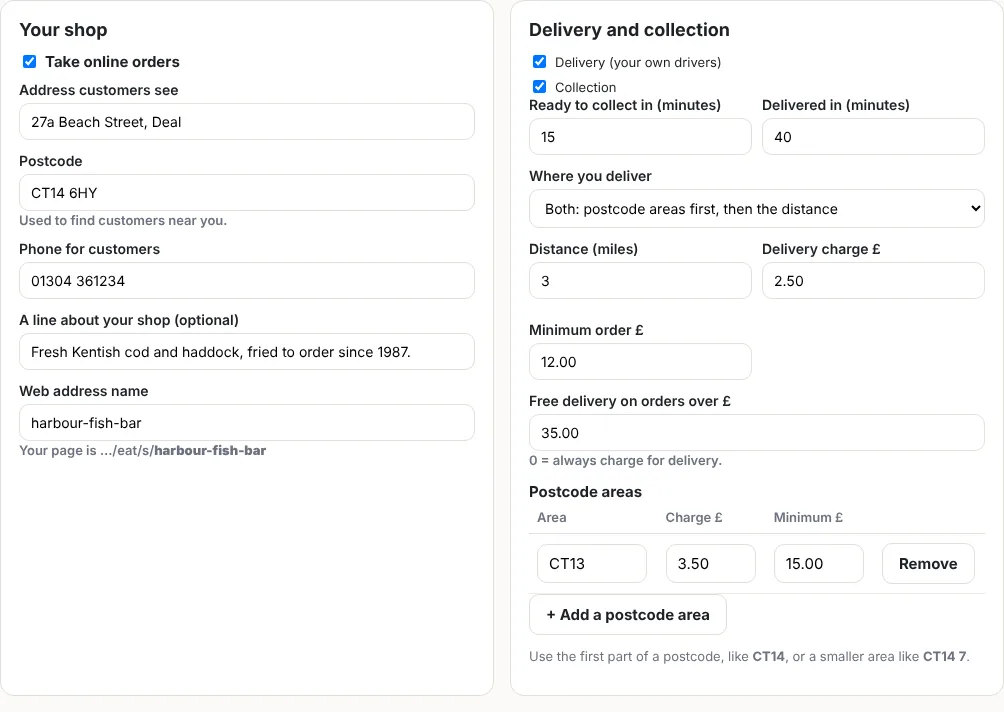
- Tick Take online orders.
- Address customers see and Postcode: the postcode is how customers nearby find you, and where delivery distances are measured from.
- Phone for customers: shown so customers can call about their order or allergies.
- A line about your shop: for example Fresh cod and haddock, fried to order since 1987.
- Web address name: the end of your page address, for example harbour-fish-bar.
4Photo and logo
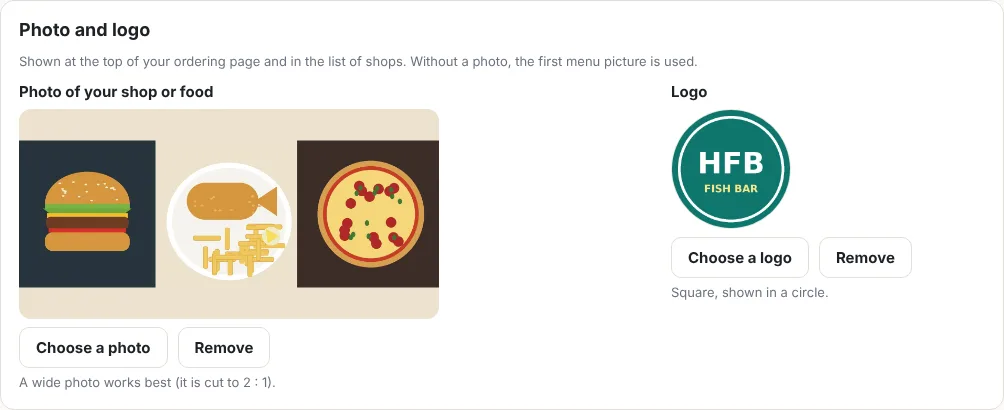
In the Photo and logo box, press Choose a photo for a picture across the top of your page (your shopfront or your food; a wide picture works best), and Choose a logo for the round badge. They upload straight away; there is no need to press Save.
5Delivery, collection, charges and areas
In the Delivery and collection box:
- Tick Delivery, Collection or both. Delivery is done by your own drivers.
- Ready to collect in and Delivered in: the minutes customers see, and the earliest time they can choose.
- Where you deliver:
- Within a distance of the shop: for example 3 miles, with one delivery charge and minimum order.
- Postcode areas: a list of areas, each with its own charge and minimum, for example CT14 £2.00, CT13 £3.50. Use the first part of a postcode (CT14), or a smaller area (CT14 7).
- Both: postcode areas first, then the distance for everywhere else.
- Free delivery on orders over: for example £35. Enter 0 to always charge.
Customers outside your delivery area can still order collection if they are within 15 miles.
6Opening hours and pausing
Set the hours you take online orders for each day, or tick Closed. Closing after midnight? Enter the time (for example 01:00): it counts as the same night. When you are closed, customers can still order for later the same day.
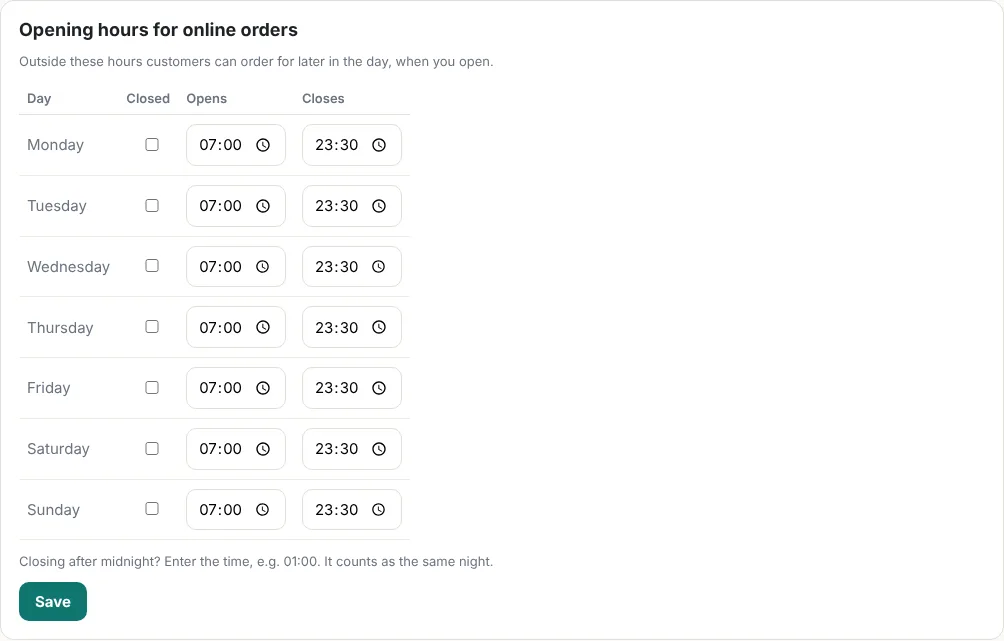
Press Save. The top of the page now shows whether you are taking orders, and your ordering page link.

Too busy? Press Pause online orders (too busy). Customers see that you are not taking orders. Press Start taking orders again when you are ready.
7Payments
Customers pay into your own SumUp account, using the details you set up on the QR ordering page (see Staff, QR ordering and cash-ups). SumUp's normal online card fees apply, and SumUp pays the money to you.
8Your menu online
Customers see your normal menu with its pictures. Online orders use your take-out prices for collection and your delivery prices for delivery (an empty delivery price uses the take-out price). Products that are not on sale, or that run out in your stock, are hidden.
To keep a product off your online menu but still sell it in the shop, untick Online next to it in Menu (see Add products and prices).
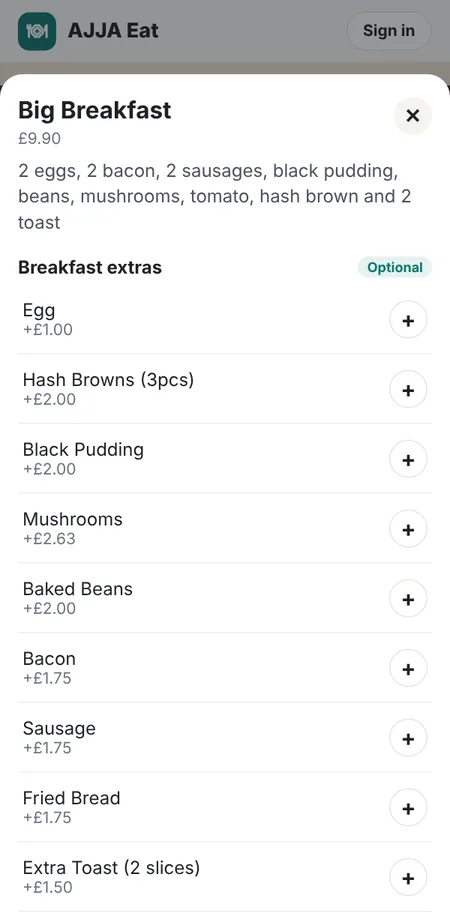
Add a description to products such as breakfasts and meal deals, so customers know what is in them (see Descriptions for customers).
9Your own web address (optional)
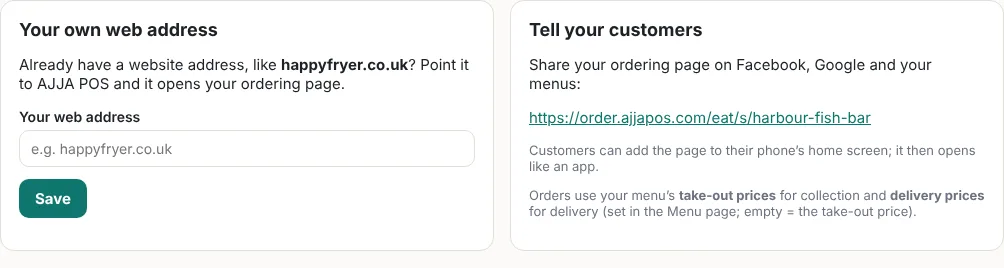
If you already have a web address, such as happyfryer.co.uk, it can open your ordering page:
- Type it in the Your own web address box and press Save.
- Log in where you bought the address (for example 123-reg, GoDaddy or IONOS) and set the two A records shown on the page, for @ and www, to our server address. Remove any other A or AAAA records for @ and www.
- After a few hours, press Check the address. When it says it points to AJJA POS, your page opens at your address, with the secure padlock set up automatically.
10When an order comes in
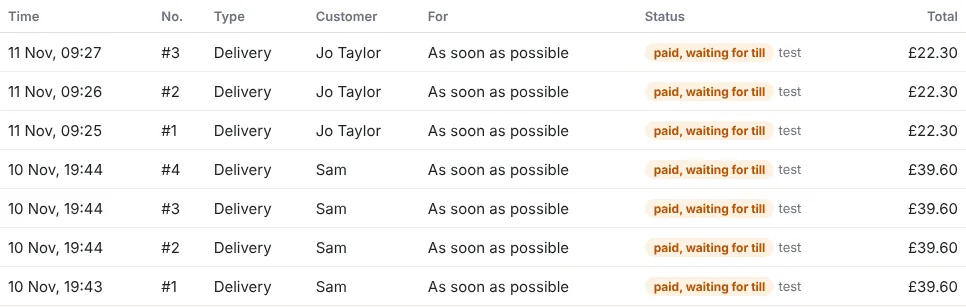
- The till shows New delivery order or New collection order.
- The kitchen ticket prints straight away with DELIVER or COLLECTION, the time wanted, and the customer's name, phone, address and note. The delivery and packaging charges are on the receipt, not on the kitchen ticket.
- The order is in your sales like any other, paid by card.
11Tell your customers
Share your ordering page link (top of the Online orders page) on Facebook, Google, your menus and your shop window. Customers can add it to their phone's home screen and it opens like an app.